Tunnel-in-the-Sky Displays

“Tunnel in the Sky” is the name of a 1955 Robert Heinlein novel that has nothing to do with this post. It is also the title of the following illustration by Muscovite digital artist Vladimir Manyukhin, which also has nothing to do with this post, but is gorgeous and evocative, and included here solely for visual interest.

See more of Vladimir’s work here https://www.artstation.com/mvn78.

Instead, this post is about the piloting display of the same name, and written specifically to sci-fi interface designers.


Last week in reviewing the spinners in Blade Runner, I included mention and a passing critique of the tunnel-in-the-sky display that sits in front of the pilot. While publishing, I realized that I’d seen this a handful of other times in sci-fi, and so I decided to do more focused (read: Internet) research about it. Turns out it’s a real thing, and it’s been studied and refined a lot over the past 60 years, and there are some important details to getting one right.

Though I looked at a lot of sources for this article, I must give a shout-out to Max Mulder of TU Delft. (Hallo, TU Delft!) Mulder’s PhD thesis paper from 1999 on the subject is truly a marvel of research and analysis, and it pulls in one of my favorite nerd topics: Cybernetics. Throughout this post I rely heavily on his paper, and you could go down many worse rabbit holes than cybernetics. n.b., it is not about cyborgs. Per se. Thank you, Max.

I’m going to breeze through the history, issues, and elements from the perspective of sci-fi interfaces, and then return to the three examples in the survey. If you want to go really in depth on the topic (and encounter awesome words like “psychophysics” and “egomotion” in their natural habitat), Mulder’s paper is available online for free from researchgate.net: “Cybernetics of Tunnel-in-the-Sky Displays.”

What the heck is it?

A tunnel-in-the-sky display assists pilots, helping them know where their aircraft is in relation to an ideal flight path. It consists of a set of similar shapes projected out into 3D space, circumscribing the ideal path. The pilot monitors their aircraft’s trajectory through this tunnel, and makes course corrections as they fly to keep themselves near its center.

This example comes from Michael P. Snow, as part of his “Flight Display Integration” paper, also on researchgate.net.

Please note that throughout this post, I will spell out the lengthy phrase “tunnel-in-the-sky” because the acronym is pointlessly distracting.

Quick History

In 1973, Volkmar Wilckens was a research engineer and experimental test pilot for the German Research and Testing Institute for Aerospace (now called the German Aerospace Center). He was doing a lot of thinking about flight safety in all-weather conditions, and came up with an idea. In his paper “Improvements In Pilot/Aircraft-Integration by Advanced Contact Analog Displays,” he sort of says, “Hey, it’s hard to put all the information from all the instruments together in your head and use that to fly, especially when you’re stressed out and flying conditions are crap. What if we took that data and rolled it up into a single easy-to-use display?” Figure 6 is his comp of just such a system. It was tested thoroughly in simulators and shown to improve pilot performance by making the key information (attitude, flight-path and position) perceivable rather than readable. It also enabled the pilot greater agency, by not having them just follow rules after instrument readings, but empowering them to navigate multiple variables within parameters to stay on target.

In Wilckens’ Fig. 6, above, you can see the basics of what would wind up on sci-fi screens decades later: shapes repeated into 3D space ahead of the aircraft to give the pilot a sense of an ideal path through the air. Stay in the tunnel and keep the plane safe.

Mulder notes that the next landmark developments come from the work of Arthur Grunwald & S. J. Merhav between 1976–1978. Their research illustrates the importance of augmenting the display and of including a preview of the aircraft in the display. They called this preview the Flight Path Predictor, or FPS. I’ve also seen it called the birdie in more modern papers, which is a lot more charming. It’s that plus symbol in the Grunwald illustration, below. Later in 1984, Grunwald also showed that a heads-up-display increased precision adhering to a curved path. So, HUDs good.

 n.b. This is Mulder’s representation of Grunwald’s display format.

I have also seen lots of examples of—but cannot find the research provenance for—tools for helping the pilot stay centered, such as a “ghost” reticle at the center of each frame, or alternately brackets around the FPP, called the Flight Director Box, that the pilot can align to the corners of the frames. (I’ll just reference the brackets. Gestalt be damned!) The value of the birdie combined with the brackets seems very great, so though I can’t cite their inventor, and it wasn’t in Mulder’s thesis, I’ll include them as canon.

The takeaway from the history is really that these displays have a rich and studied history. The pattern has a high confidence.

Elements of an archetypical tunnel-in-the-sky display

There are lots of nuances that have been studied for these displays. Take for example the effect that angling the frames have on pilot banking, and the perfect time offset to nudge pilot behavior closer to ideal banking. For the purposes of sci-fi interfaces, however, we can reduce the critical components of the real world pattern down to four.

  1. Square shapes (called frames) extending into the distance that describe an ideal path through space
    1. The frame should be about five times the width of the craft. (The birdie you see below is not proportional and I don’t think it’s standard that they are.)
    2. The distances between frames will change with speed, but be set such that the pilot encounters a new one every three seconds.
    3. The frames should adopt perspective as if they were in the world, being perpendicular to the flight path. They should not face the display.
    4. The frames should tilt, or bank, on curves.
    5. The tunnel only needs to extend so far, about 20 seconds ahead in the flight path. This makes for about 6 frames visible at a time.
  2. An aircraft reference symbol or Flight Path Predictor Symbol (FPS, or “birdie”) that predicts where the plane will be when it meets the position of the nearest frame. It can appear off-facing in relation to the cockpit.
    1. These are often rendered as two L shapes turned base-to-base with some space between them. (See one such symbol in the Snow example above.)
    2. Sometimes (and more intuitively, imho) as a circle with short lines extending out the sides and the top. Like a cartoon butt of a plane. (See below.)
  3. Contour lines connect matching corners across frames
  4. A horizon line
This comp illustrates those critical features.

There are of course lots of other bits of information that a pilot needs. Altitude and speed, for example. If you’re feeling ambitious, and want more than those four, there are other details directly related to steering that may help a pilot.

  • Degree-of-vertical-deviation indicator at a side edge
  • Degree-of-horizontal-deviation indicator at the top edge
  • Center-of-frame indicator, such as a reticle, appearing in the upcoming frame
  • A path predictor 
  • Some sense of objects in the environment: If the display is a heads-up display, this can be a live view. If it is a separate screen, some stylized representation what the pilot would see if the display was superimposed onto their view.
  • What the risk is when off path: Just fuel? Passenger comfort? This is most important if that risk is imminent (collision with another craft, mountain) but then we’re starting to get agentive and I said we wouldn’t go there, so *crumbles up paper, tosses it*.

I haven’t seen a study showing efficacy of color and shading and line scale to provide additional cues, but look closely at that comp and you’ll see…

  • The background has been level-adjusted to increase contrast with the heads-up display
  • A dark outline around the white birdie and brackets to help visually distinguish them from the green lines and the clouds
  • A shadow under the birdie and brackets onto the frames and contours as an additional signal of 3D position
  • Contour lines diminishing in size as they extend into the distance, adding an additional perspective cue and limiting the amount of contour to the 20 second extents.
Some other interface elements added.

What can you play with when designing one in sci-fi?

Everything, of course. Signaling future-ness means extending known patterns, and sci-fi doesn’t answer to usability. Extend for story, extend for spectacle, extend for overwhelmedness. You know your job better than me. But if you want to keep a foot in believability, you should understand the point of each thing as you modify it and try not to lose that.

  1. Each frame serves as a mini-game, challenging the pilot to meet its center. Once that frame passes, that game is done and the next one is the new goal. Frames describe the near term. Having corners to the frame shape helps convey banking better. Circles would hide banking.
  2. Contour lines, if well designed, help describe the overall path and disambiguate the stack of frames. (As does lighting and shading and careful visual design, see above.) Contour lines convey the shape of the overall path and help guide steering between frames. Kind of like how you’d need to see the whole curve before drifitng your car through one, the contour lines help the pilot plan for the near future. 
  3. The birdie and brackets are what a pilot uses to know how close to the center they are. The birdie needs a center point. The brackets need to match the corners of the frame. Without these, it’s easier to drift off center.
  4. A horizon line provides feedback for when the plane is banked.
THIS BAD: You can kill the sense of the display by altering (or in this case, omitting) too much.

Since I mentioned that each frame acts as a mini-game, a word of caution: Just as you should be skeptical when looking to sci-fi, you should be skeptical when looking to games for their interfaces. The simulator which is most known for accuracy (Microsoft Flight Simulator) doesn’t appear to have a tunnel-in-the-sky display, and other categories of games may not be optimizing for usability as much as just plain fun, with the risk of crashing your virtual craft just being part of the risk. That’s not an acceptable outcome in real-world piloting. So, be cautious considering game interfaces as models for this, either.

This clip of stall-testing in the forthcoming MSFS2020 still doesn’t appear to show one. 

So now let’s look at the three examples of sci-fi tunnel-in-the-sky displays in chronological order of release, and see how they fare.

Three examples from sci-fi

So with those ideal components in mind, let’s look back at those three examples in the survey.

Alien (1976)
Blade Runner (1982)

Quick aside on the Blade Runner interface: The spike at the top and the bottom of the frame help in straight tunnels to serve as a horizontal degree-of-deviation indicator. It would not help as much in curved tunnels, and is missing a matching vertical degree-of-deviation indicator. Unless that’s handled automatically, like a car on a road, its absence is notable.

Starship Troopers (1997) We only get 15 frames of this interface in Starship Troopers, as Ibanez pilots the escape shuttle to the surface of Planet P. It is very jarring to see as a repeating gif, so accept this still image instead. 

Some obvious things we see missing from all of them are the birdie, the box, and the contour lines. Why is this? My guess is that the computational power in the 1976 was not enough to manage those extra lines, and Ridley Scott just went with the frames. Then, once the trope had been established in a blockbuster, designers just kept repeating the trope rather than looking to see how it worked in the real world, or having the time to work through the interaction logic. So let me say:

  • Without the birdie and box, the pilot has far too much leeway to make mistakes. And in sci-fi contexts, where the tunnel-in-the-sky display is shown mostly during critical ship maneuvers, their absence is glaring.
  • Also the lack of contour lines might not seem as important, since the screens typically aren’t shown for very long, but when they twist in crazy ways they should help signal the difficulty of the task ahead of the pilot very quickly.

Note that sci-fi will almost certainly encounter problems that real-world researchers will not have needed to consider, and so there’s plenty of room for imagination and additional design. Imagine helping a pilot…

  • Navigating the weird spacetime around a singularity
  • Bouncing close to a supernova while in hyperspace
  • Dodging chunks of spaceship, the bodies of your fallen comrades, and rising plasma bombs as you pilot shuttlecraft to safety on the planet below
  • AI on the ships that can predict complex flight paths and even modify them in real time, and even assist with it all
  • Needing to have the tunnel be occluded by objects visible in a heads up display, such as when a pilot is maneuvering amongst an impossibly-dense asteroid field. 

…to name a few off my head. These things don’t happen in the real world, so would be novel design challenges for the sci-fi interface designer.


So, now we have a deeper basis for discussing, critiquing, and designing sci-fi tunnel-in-the-sky displays. If you are an aeronautic engineer, and have some more detail, let me hear it! I’d love for this to be a good general reference for sci-fi interface designers.

If you are a fan, and can provide other examples in the comments, it would be great to see other ones to compare.

Happy flying, and see you back in Blade Runner in the next post.

Cyberspace: the hardware

And finally we come to the often-promised cyberspace search sequence, my favourite interface in the film. It starts at 36:30 and continues, with brief interruptions to the outside world, to 41:00. I’ll admit there are good reasons not to watch the entire film, but if you are interested in interface design, this will be five minutes well spent. Included here are the relevant clips, lightly edited to focus on the user interfaces.

Click to see video of The cyberspace search.

Click to see Board conversation, with Pharmakom tracker and virus

First, what hardware is required?

Johnny and Jane have broken into a neighbourhood computer shop, which in 2021 will have virtual reality gear just as today even the smallest retailer has computer mice. Johnny clears miscellaneous parts off a table and then sits down, donning a headset and datagloves.

jm-30-hardware-a

Headset

Headsets haven’t really changed much since 1995 when this film was made. Barring some breakthrough in neural interfaces, they remain the best way to block off the real world and immerse a user into the virtual world of the computer. It’s mildly confusing to a current day audience to hear Johnny ask for “eyephones”, which in 1995 was the name of a particular VR headset rather than the popular “iPhone” of today.

Throughout this cyberspace sequence the virtual reality system Johnny uses gives vocal feedback, usually just confirming what has happened or repeating information visible in cyberspace. Johnny will also use voice commands himself. Jane seemingly can’t hear this feedback, as she has no idea what is happening other than what Johnny tells her. No earbuds or headphones are visible, but nearly all headsets then and now incorporate audio output as well as visual display so presumably sound is the function of the silver bulges at the back of the headset.

Dataglove

Datagloves are less common today. These track the position and orientation of the hands as they move, in this particular case to the bending of individual fingers. In 1995 this was done with magnetic or ultrasonic trackers on each hand and various fibre optic or potentiometer bend sensors on the finger joints, all built into a rather bulky glove. Today this can be done passively by a video camera, for example the Microsoft Kinect or Leap Motion Controller. With these technologies it’s not even necessary to paint dots on the fingers, which unlike faces have convenient gaps in between the points of interest.

Johnny mostly keeps his arms horizontal just above the table surface, but we will occasionally see him reach up. As chapter 5 of Make It So points out, trying to operate a vertical touch screen or gesture interface for any length of time is exhausting, and the same would be true if the VR system required him to frequently lift his hands and arms above the conventional keyboard height.

System status

There is also a system status display on the table.

jm-30-hardware-b

Various indicators light up as Johnny gets ready. It would be helpful if this were mirrored to the headset, so Johnny could at least see which components are working or not without removing it.

My first impression was that the grid on the table might be some kind of optical tracking aid. Then I remembered that this is a worktable, and protective table mats with a grid pattern printed on them are sold in craft and hardware shops. Not everything in the future needs to be advanced technology.

Voice feedback

As Johnny performs his various actions in cyberspace, another synthesized voice gives him constant feedback, most often telling him which actions and objects have been selected. I suggest this is for new users, who may be confused about exactly what they can and cannot do in virtual reality. (Of course, it is also very useful for telling us the audience what is happening.) Johnny himself is not a new VR users, but since this is a system assembled straight out of the box he gets the default setting. Over time a voice constantly telling you what you’ve done probably becomes irritating, which is why earlier systems were not so chatty.

The tracker

We see a second person in cyberspace during this sequence, although only briefly. This is the Pharmakom tracker, who is trying to locate Johnny and Jane for the Yakuza.

jm-30-hardware-c

He too wears a headset and gloves, but also has a one piece earphone and microphone. He uses this not for voice commands, but for a phone connection to Shinji, the Yakuza leader in a car.

He is standing in front of a lectern type display.

jm-30-hardware-d

This shows a street map, with the red cross hairs presumably the location being examined. Current day VR systems often mirror what the headset is showing to a more conventional display as this is very useful in testing and debugging. Note also the rows of unmarked buttons on either side. I’ll discuss these and similar buttons below.

Having him stand is an interesting choice. The advantage of standing in VR is that it allows the participant to bend and turn more freely, using body motion as an input as well as hands and head. The disadvantages are that this is more tiring, and that with the headset blocking the real world, it’s very easy to bump into things. The first commercial VR game, “Dactyl Nightmare” by W Industries, had a waist-high padded fence around the player to stop them falling over or walking too far and breaking the cables.

jm-14-vr1000

VR1000 restored by Simon Marston

Here the tracker is risking a painful bruised knee. Perhaps he is a standing desk enthusiast who believes the other health benefits make it worthwhile.

The Curious Unmarked Buttons…

A recurring hardware interface in Johnny Mnemonic is the grid of unmarked buttons. There were two in the upload hotel suite, the image grabber, and the fax machine. And here the lectern display used by the tracker has more of the same.

I can’t recall any others like this, with one exception: the Pixar animated short “Lifted”, which has a vast array of unmarked identical switches. But that was a deliberate caricature, making fun of terribly designed and confusing interfaces.

Research tells us that labelled buttons and keys are the best for learning and use, from computers and phones to their software equivalents on modern touchscreen phones. Even the buttons on consumer remote controls are marked, however cryptic the symbols may be. The only unmarked buttons in current day regular use are those used around the edges of displays for ATMs and in aircraft cockpits. Here the meaning of these “soft buttons” will be shown by the text or graphic displayed nearby.

jm-14-unmarked
Image by the author

But this isn’t possible for the unmarked buttons in Johnny Mnemonic, which either don’t have screens or don’t have buttons next to the screen.

…Are a platform for virtual buttons

Perhaps the buttons on the lectern are unmarked because they’re intended for use in cyberspace. If the computer system generating the virtual reality is aware of the lectern’s location in relation to the user, it could generate labels within the virtual reality that the user would perceive as exactly where the physical buttons are. The buttons would then provide actual tactile feedback for location and when pressed. 

High Tech Binoculars

In Johnny Mnemonic we see two different types of binoculars with augmented reality overlays and other enhancements: Yakuz-oculars, and LoTek-oculars.

Yakuz-oculars

The Yakuza are the last to be seen but also the simpler of the two. They look just like a pair of current day binoculars, but this is the view when the leader surveys the LoTek bridge.

jm-25-yakuza-binocs-adjusted

I assume that the characters here are Japanese? Anyone?

In the centre is a fixed-size green reticule. At the bottom right is what looks like the magnification factor. At the top left and bottom left are numbers, using Western digits, that change as the binoculars move. Without knowing what the labels are I can only guess that they could be azimuth and elevation angles, or distance and height to the centre of the reticule. (The latter implies some sort of rangefinder.)

So far, this is a simple uncluttered display. But why is there a brightly glowing Pharmakom logo at the top right? It blocks part of the view, and probably doesn’t help anyone trying to keep their eyes adapted for night vision.

LoTek-oculars

The LoTeks, despite their name, have more impressive binoculars. They’re first used when Johnny gets out of his airport taxi.

jm-11-lotek-binocs-a-adjusted

There’s a third tube above the optics, a rectangular inlet, and an antenna.

In these binoculars, the augmented reality overlay is much more dynamic. Instead of a fixed circle, green lines converge in a bounding box around the image of Johnny. Text slides onto the display from left to right, the last line turning yellow.

jm-11-loteks-animated

Zoomrect

The animated transition of the bounding box resembles what Classic MacOS programmers of the 1990s called “zoomrects” used for showing windows opening or closing. It’s a very effective technique to draw attention to a particular area of an image.

Animated text

Text appearing character by character is ubiquitous in film interfaces. In the 1960s and 1970s mainframe and minicomputer terminals really did display incrementally, as the characters arrived one by one over slow serial port links. On any more recent computer it actually takes extra programming to achieve this effect, as the normal display of text is so fast that we would perceive it as instantaneous. But people like to see incremental text, or have been conditioned by film to expect it, so why not?

Bioscanning

The binoculars detect Johnny’s implant. It might just be possible to detect this passively from infrared or electronic signals, but more likely the binoculars include a high resolution microwave radar as well. If there had been more than one person in view, the bounding box would indicate which one the text refers to. And note that the last line of text is a different color. What that means is unclear here, but it becomes clear (and I’ll discuss it) later.

The second time we see the LoTek binoculars is when a lookout spots Street Preacher, a very bad guy and another who wants to remove Johnny’s head. Once again the binoculars have performed more than just a visual scan.

jm-17-lotek-binocs-a-adjusted

The binocular view and overlay are being relayed to another character, the LoTek leader J-Bone who can watch on a monitor. Here the film anticipates the WiFi webcam.

jm-17-lotek-binocs-b-adjusted

The overlay text now changes.

jm-17-lotek-binocs-c-adjusted

Narrow AI?

This is interesting, because the binoculars can not only detect implants and other cyborg modifications, but are apparently able to evaluate and offer advice. It appears that the green text is used for the factual (more or less) information about what has been detected, while yellow text is uncertain or or speculative.

Does this imply a general artificial intelligence? Not necessarily. This warning could be based solely on the detected signature, in the same way that current day military passive sonars and radar warning receivers can identify threats based on identifying characteristics of a received signal. In the world of Johnny Mnemonic it would make sense to assume that anyone with full custom biomechanics is extremely dangerous. Or, since Street Preacher is a resident rather than a stranger and already feared by others, his appearance and the warning could have been entered into a LoTek facial recognition database that the binocular system uses as a reference.

These textual overlays are an excellent interface, not interfering with normal vision and providing a fast and easy-to-understand analysis. But, the user must have faith that the computer analysis is accurate. There’s no reason given as to why any of the text is displayed. If Johnny was carrying an implant in his pocket instead of his brain, would the computer know the difference?

An alternative approach would be some kind of sensor fusion or false spectrum display, with the raw infrared or radar image overlaid over the visuals and the viewer responsible for interpreting the data. The problem with such systems is that our visual system didn’t evolve to interpret such imagery, so a lot of training and practice is required to be both fast and accurate. And the overlay itself interferes with our normal visual recognition and processing. If the computer can do a better job of deciphering the meaning of non-visual data, it should do so and summarise for the human viewer.

Further advantages of this interface are that even a novice sentry will benefit from the built-in scanning and threat analysis, and the wireless transmission ensures that the information is shared rather than being limited to the person on watch. 

Binoculars

BttF_023

Doc Brown uses some specialized binoculars to verify that Marty’ Jr. is at the scene according to plan. He flips them open and puts his eyes up to them. When we see his view, a reticle of green corners is placed around the closest individual in view. In the lower right hand corner are three measurements, “DISTgamma, and “XYZ.” These numbers change continuously. A small pair of graphics at the bottom illustrate whether the reticle is to left or right of center.

BttF_025

As discussed in Chapter 8 of Make It So, augmented reality systems like this can have several awarenesses, and this has some sensor display and people awareness. I’m not sure what use the sensor data is to Doc, and the people detector seems unable to track a single individual consistently.

BttF_024

So, a throwaway interface that doesn’t help much beyond looking gee-whiz(1989).

Iron Man HUD: 1st person view

In the prior post we catalogued the functions in the Iron HUD. Today we examine the 1st-person display.

When we first see the HUD, Tony is donning the Iron Man mask. Tony asks, JARVIS, “You there?” To which JARVIS replies, “At your service sir.” Tony tells him to “Engage the heads-up display”, and we see the HUD initialize. It is a dizzying mixture of blue wireframe motion graphics. Some imply system functions, such as the reticle that pinpoints Tony’s eye. Most are small dashboard-like gauges that remain small and in Tony’s peripheral vision while the information is not needed, and become larger and more central when needed. These features are catalogued in another post, but we learn about them through two points-of-view:a first-person view, which shows us what Tony’s sees as if we were there, donning the mask in his stead, and second-person view, which shows us Tony’s face overlaid against a dark background with floating graphics.

This post is about that first-person view. Specifically it’s about the visual design and the four awarenesses it displays.

Avengers-missile-fetching04

In the Augmented Reality chapter of Make It So, I identified four types of awareness seen in the survey for Augmented Reality displays:

  1. Sensor display
  2. Location awareness
  3. Context awareness
  4. Goal awareness

The Iron Man HUD illustrates all four and is a useful framework for describing and critiquing the 1st-person view.

Sensor display

When looking through the HUD “ourselves,” we can see that the HUD provides some airplane-like heads up instruments: Across the top is a horizontal compass with a thin white line for a needle. Below and to its left is a speed indicator, presented in terms of MACH. On the left side of the screen is a two-part altimeter with overlays indicating public, commercial, military, and aerospace layers of atmosphere, with a small blue tick mark indicating Tony’s current altitude.

There are just-in-time status indicators like that cyan text box on the right with its randomized rule line. The content within is all N -8 W -97 RNG EL, so, hard to tell what it means, but Tony’s a maker working with a prototype. It’s no surprise he takes some shortcuts in the interface since it’s not a commercial device. But we should note that it would reduce his cognitive load to not have to remember what those cryptic letters meant.

IronMan1_HUD08
You can just see the tops of these gauges at the bottom of this screen.

The exact sensor shown depends on the context and goal at hand.

Periphery and attention

A quick sidenote about peripheral vision and the detail of these gauges. Looking at them, it’s notable that they are small and quite detailed. That makes sense when he’s looking right at them, but when he’s not, given the amount of big, swirling graphics he“s got vying for his attention in the main display, the more those little gauges have to compete. And when it comes to your peripheral vision, localized detail and motion is not enough, owing to the limits of our foveal extent. (Props to @pixelio for the heads-up on this one.)

You see, your brain tricks you into thinking that you can see really well across your entire field of vision. In fact, you can only see really well across a few dozen degrees of that perceptual sphere, corresponding to the tiny area at the back of your eye called the fovea where all the really good photoreceptors concentrate. As your eyes dart around the scene before you, your brain puts all the snippets of detailed information together so it feels like a cohesive, well-detailed whole, but it’s ultimately just a hack. Take a look at this demonstration of the effect.

Screen Shot 2015-07-20 at 23.49.56
This only works if you view it live.

So, having those teeny little guages dancing around as a signal of troubles ahead won’t really get Tony’s attention. He could develop habits of glancing at these things, but that’s a weak strategy, since this data is so mission-critical. If he misses it and forgets to check the gauges, he’s Iron Toast. Fortunately, JARVIS is once again our deus ex machina (in so many senses) because he is able to track where Tony is looking, and if he’s not looking at the wiggling gauge, JARVIS can choose to escalate the signal: Hide the air traffic data temporarily and show the problem in the main screen. Here, as in other mission critical systems, attention management is crisis management. Now, for those of us working with pre-JARVIS tech, it’s rare today for a system to be able to

  • Track perceptual details of its users
  • Monitor a model of the user’s attention
  • Make the right call amongst competing priorities to escalate the right one

But if you could, it would be the smart and humane way to handle it.

Location Awareness

As Tony prepares for his first flight, JARVIS gives him a bit of x-ray vision, displaying a wireframe view of the Santa Monica coastline with live air traffic control icons of aircraft in the vicinity. The overhead map updates of course in real time.

IronMan1_HUD17
If my Google Earth sleuthing is right, his view means he lives in the Malibu RV Park and this view is due East.

Context Awareness

Very quickly after we meet the HUD it shows its object recognition capabilities. As Tony sweeps his glance across his garage, complex reticles jump to each car. Split-seconds afterwards, the car’’s outline is overlaid and some adjunct information about it is presented.

IronMan1_HUD10

This holds true as he’s in flight as well. When Tony passes by the Santa Monica pier, not only is the Pacific Wheel identified (as the Santa Monica Ferriswheel), but the interface shows him a Wikipedia-esque article for the thing as well.

IronMan1_HUD19

IronMan1_HUD21

While JARVIS might be tapping into location databases for both the car and the ferris wheel recognition, it’s more than that. In one scene we see him getting information on the Iron Patriot as it rockets away, and its location wouldn’t be on any real-time record for him to access.

Optical zoom

Too much detail

While this level of object detail is deeply impressive, it’s about as useful as reading Wikipedia pages hard-printed to transparencies while driving. The text is too small, too multilayered, and just pointless considering that JARVIS can tell him whatever he needs to know without even asking. Maybe he could indulge in pop-up pamphlets if he was on a long-haul flight from, say, Europe back home to the Malibu RV Park (see above), but wouldn’t Tony rather watch a movie while on Autopilot instead?

Goal awareness

Of course JARVIS is aware of Tony’s goals, and provides graphics customized to the task, whether that task is navigating flight through complex obstacle courses…

3D wayfinding

…taking down a bad guy with the next hit…

Suggested target points

…saving innocent bystanders who are freefalling from a plane…

Biometric analysis, target acquisition

…or instantly analyzing problems in an observed (and complicated) piece of machinery…

3D schematics of observed machinery with damage highlights

…JARVIS is there with the graphics to help illustrate, if not solve, the problem at hand. Most impressively, perhaps, is JARVIS’ ability to juggle all of these graphics and modes seamlessly to present just the right thing at the right time in real time. Tony never asks for a particular display, it just happens. If you needed no other proof of its strong artificial intelligence, this would be it.

Next up in the Iron HUD series: Compare and contrast the 2nd-person view.

Iron Man HUD: Just the functions

In the last post we went over the Iron HUD components. There is a great deal to say about the interactions and interface, but let’s just take a moment to recount everything that the HUD does over the Iron Man movies and The Avengers. Keep in mind that just as there are many iterations of the suit, there can be many iterations of the HUD, but since it’s largely display software controlled by JARVIS, the functions can very easily move between exosuits.

Gauges

Along the bottom of the HUD are some small gauges, which, though they change iconography across the properties, are consistently present.

IronMan1_HUD07

For the most part they persist as tiny icons and thereby hard to read, but when the suit reboots in a high-altitude freefall, we get to see giant versions of them, and can read that they are:

IronMan1_HUD13
Tony can, at a glance or request, summon more detail for any of the gauges.
IronMan1_HUD12
Even different visualizations of similar information.

Object Recognition

In the 1st-person view we see that the HUD has a separate map in the lower-left, and object recognition/awareness,

IronMan1_HUD10
IronMan1_HUD11
In the 2nd-person view, we see even more layers of information about the identified objects, floating closer to tony’s point of view.

Situational

Most of the HUD functions we see, though, are situational, brought up for Tony’s attention when JARVIS believes they are needed, or when Tony requests them. Following are screenshots that illustrate a moment when the situational function appeared. 

Iron Man

Iron Man 2

Iron Man 3

The Avengers

Some of these illustrate why I argue that JARVIS is the superhero, and Tony just the onboard manager, but rather than reverse engineering any particular function, for this post it is enough to document them and note that only the optical zoom seems to be an interactive function. This raises questions of how he initiated the mode and how he escapes the mode, but since we don’t see the mechanisms of control, it’s entirely arguable that JARVIS is just  being his usual helpful self again.

Next up in the Iron HUD series: Let’s dive deeper into the first-person view.

Scav Reticle

The last Scav tech (and the last review of tech in the nerdsourced reviews of Oblivion) is a short one. During the drone assault on the Scav compound, we get a glimpse of the reticle used by the rebel Sykes as he tries to target a weak spot in a drone’s backside.
Scav reticle

The reticle has a lot of problems, given Sykes’ task. The data on the periphery is too small to be readable. There are some distracting lines from the augmentation boxes which, if they’re just pointing to static points along the hairline, should be removed. The grid doesn’t seem to serve much purpose. There aren’t good differentiations among the ticks to be able to quickly subitize subtensions. (Read: tell how wide a thing is compared to the tick marks.) (You know, like with a ruler.)

ruler

The reticle certainly looks sci-fi, but real-world utility seems low.

The nicest and most surprising thing though is that the bullseye is the right shape and size of the thing he’s targeting. Whatever that circle thing is on the drone (a thermal exhaust port, which seem to be ubiquitously weak in spherical tech) this reticle seems to be custom-shaped to help target it. This may be giving it a lot of credit, but in a bit of apologetics, what if it had a lot of goal awareness, and adjusted the bullseye to match the thing he was targeting? Could it take on a tire shape to disable a car? Or a patella shape to help incapacitate a human attacker? That would be a very useful reticle feature.

Contact!

image04

Jack lands in a ruined stadium to do some repairs on a fallen drone. After he’s done, the drone takes a while to reboot, so while he waits, Jack’s mind drifts to the stadium and the memories he has of it.

Present information as it might be shared

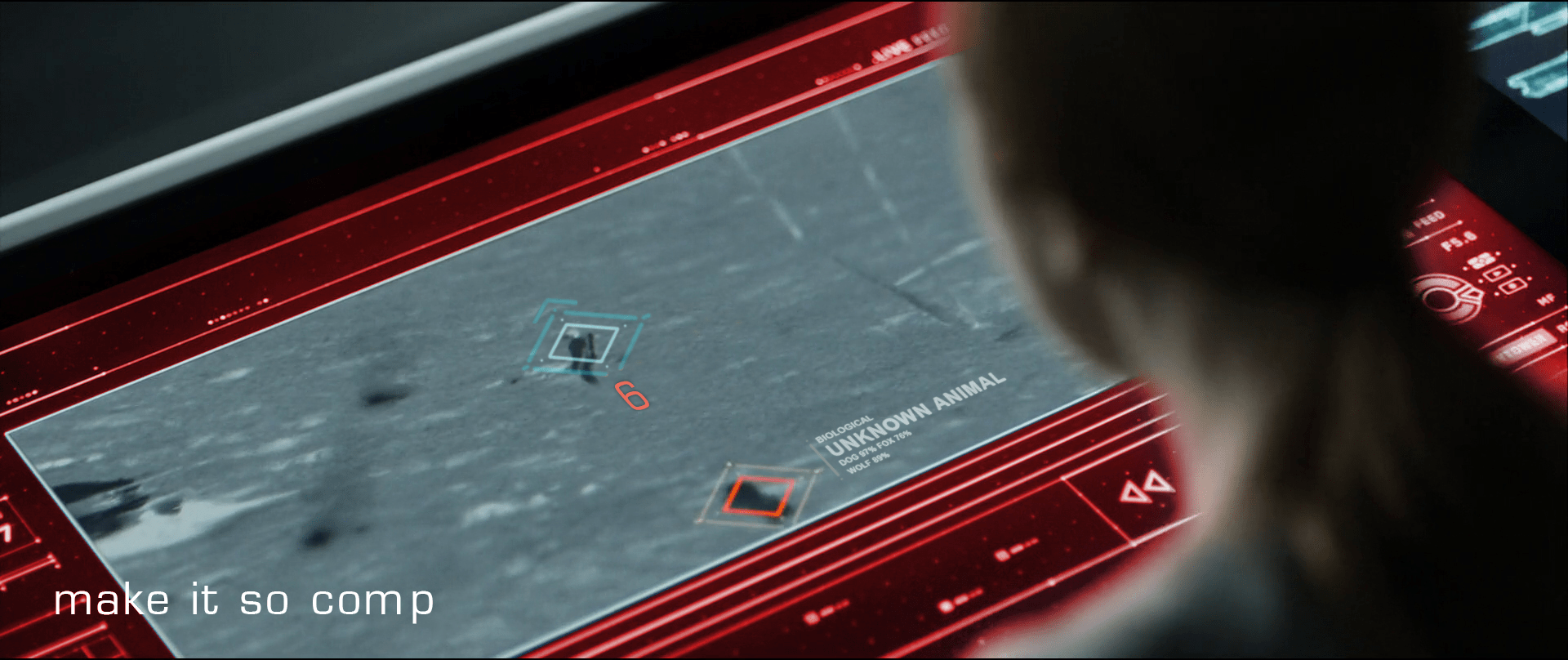
Vika was in comms with Jack when she notices the alarm signal from the desktop interface. Her screen displays an all-caps red overlay reading ALERT, and a diamond overlaying the unidentified object careening toward him. She yells, “Contact! Left contact!” at Jack.

image02

As Jack hears Vika’s warning, he turns to look drawing his pistol reflexively as he crouches. While the weapon is loading he notices that the cause of the warning was just a small, not-so-hostile dog.

Although Vika yells about something coming from the left side, by looking at the screen you can kind of tell that it’s more to his back—his 6 or 7 o’ clock—than left. We’re seeing it with time to spare here, and the satellite image is very low-res, so we can cut her some slack. But given all the sensors at its command, the interface would ideally which way Jack is facing and which way the threat approaches, so she can convey correct and useful information quickly.

“Contact, at your 6, Jack!”

That’s much more precise and actionable for Jack.

image00

Don’t cover information

It might be useful to put the ALERT overlay somewhere other than on top of Jack, since it might obscure some useful information. Perhaps the “chrome” of the interface could turn red? Not as instantly readable for the audience, but if we’re designing for Vika…

Provide specifics

Another issue is that neither the satellite image nor the interface help Vika to identify what ends up being just a dog. Even when Jack manages to stay cool through the little scare jump, adding at least some information about the object would go a long way to make Vika and the situation less tense.

Jack’s encounter with the TET gives clear evidence that the TET has sophisticated computer vision, so the interface could help Vika a bit by “guessing” what any questionable object might be. It doesn’t need to be exact (and it probably couldn’t be with that kind of video feed) but the computer could give its educated guess just by analyzing the context, shape, and motion compared against things in the database. So instead of telling there is an 87% chance of being a dog or a 76% chance of being a fox, the interface could just predict unknown animal (see below).

recomp

Share off-screen information

Fast viewers saw the unknown object before the warning. During a split of a second while the object is entering the screen, it remains blue. So the computer does keep track of any movement, even if it’s not a threat. In that case the issue is that the computer seems to be tracking movement far beyond the visible area of the screen but it doesn’t let Vika know something’s coming from off-screen. The display doesn’t need to zoom out to reach the contact—that could distract Vika from following Jack—but at least it could show some kind of signal pointing at the incoming contact.

What of multiple contacts?

I’m cautious to talk about what ifs, since most of it is just guesswork—but bear with me. On the sequence the interface keeps track of just one contact, but how it would behave if there were more than one? If the computer does track of contacts beyond the camera display Vika is watching, then just marking them is not enough. If Vika needs to inform Jack on the number of contacts she’s getting on the screen, then you need some sort of overview. Pointing at the direction of the contact is useful, but it does mean you have to sweep all the screen to know how many of them are. But that can be easily fixed by adding a list of all the current contacts.

Show trending

Pausing the film a bit and looking closely, it seems that the only difference between all-is-fine and contact! with the dog is about a meter long. And what is more, by the time the interface triggers the warning the dog is really close to Jack. If that was feral dog and it was to attack him, the warning to Jack would come very late.

In such mission-critical monitoring, it’s not enough to show changes of state. Change the state subtly to indicate as things are trending—as in, this dog is likely to continue its intercept course and getting closer.

We got this

So to wrap up, the interface does a well enough job, but it could certainly benefit from some design changes. The issues are ones that any designer might have to face when working with a monitoring interface, so worth summarizing.

  • Share all the information that is at hand
  • Give the user the information in the form they might pass it along
  • Assign an easy-to-distinguish hierarchy: information, suspicion, warning
  • Provide best-guesses as to the nature of problems with as much specificity as you can
  • Provide unobtrusive but clear signals about the mode
  • Anticipate and show trending dangers

Drone Status Feed

Oblivion-Desktop-Overview-002
Oblivion-Desktop-DroneMonitor-001


As Vika is looking at the radar and verifying visuals on the dispatched drones with Jack, the symbols for drones 166 and 172 begin flashing red. An alert begins sounding, indicating that the two drones are down.

Oblivion-Desktop-DroneCoordinates

Vika wants to send Jack to drone 166 first. To do this she sends Jack the drone coordinates by pressing and holding the drone symbol for 166 at which time data coordinates are displayed. She then drags the data coordinates with one finger to the Bubbleship symbol and releases. The coordinates immediately display on Jack’s HUD as a target area showing the direction he needs to go.

Simple interactions

Overall, the sequence of interactions for this type of situation is pretty simple and well thought out. Sending coordinates is as simple as:

  1. Tap and hold on the symbol of the target (in this case the drone) using one finger
  2. A summary of coordinates data is displayed around the touchpoint (drone symbol)
  3. Drag data over to the symbol of the receiver (in this case the Bubbleship)

Then on Jack’s side, the position of the coordinates target on his HUD adjusts as he flies toward the drone. Can’t really get much simpler than that.

However…

When Vika initially powers up the desktop, the drone status feed already shows drones 166 and 172 down. This is fine, except the alert sound and blinking icons on the TETVision don’t occur until Jack has already reached the hydro-rigs. This is quite a significant time lag between the drone status feed and the TETVision feed. It would be understandable if there was a slight delay in the alert sound upon startup. An immediate alert sound would likely mean there is something wrong with the TETVision system itself. That said, the TETVision drone icons should at the very least already be blinking red on load.

Monitoring drone 166

Oblivion-Desktop-DroneMonitor-005

As Jack is repairing drone 166, Vika watches the drone status feed on her desktop. The drone status feed is a dedicated screen to the right of the TETVision feed.

Oblivion-Desktop-DroneMonitor-000

It is divided into two main sections, the drone diagnostic matrix to the left and the drone deployment table to the right.

The dispatched drone table lists all drones currently working the security perimeter and lists an overview of information including drone ID, a diagram and operational status. The drone diagnostic matrix shows data such as fuel status and drone positioning along the perimeter as well as a larger detailed diagram of the selected drone.

Oblivion-Desktop-DroneMonitor

By looking at the live diagnostics diagram, Vika is able to immediately tell Jack that the central core is off alignment. As soon as Jack finishes repairing the central core, the diagram updates that the core is back in alignment and an alert sound pings.

How does the feed know which drone to focus on?

Since there is no direct interaction with this monitor shown in the film, it is assumed to be an informational display. So, how does the feed know which drone to focus on for diagnostics?

One possibility could be that Jack transmits data from the ground through his mobile drone programmer handset, which is covered in another post. However, a great opportunity for an example of agentive tech would be that when Vika sends the drone coordinates to the Bubbleship, the drone status feed automatically focuses on that one for diagnostics.

Clear messaging in real-time…almost

Overall, the messaging for drone status feed is clear and simple. As seen in the drone deployment table, the dataset for operational drones includes the drone ID number and a rotating view of the drone schematic. If the drone is down, the ID number fades and the drone schematic is replaced with a flashing red message stating that the drone is offline. Yet, when the drone is repaired, the display immediately updates to show that everything is operational again.

This is one of the basic fundamentals of good user interface design. Don’t let the UI get in the way and distract the user.

Keep it simple.

Federation Binoculars

When conducting reconnaissance on the bug home Planet P, Rico pauses to scan the nearby mountain crest with a pair of Federation binoculars. They feature two differently-sized objective lenses.

StarshipTroopers_binoculars_01

We get a POV for him and get to see the overlay. It includes a range-finding reticle and two 7-segment readouts in the lower corners. It looks nifty, but it’s missing some important things.

Rangefinding reticles typically place enumerated marks at regular angular degrees. The numbers make calculating angular widths easy. They also typically include small areas along axes of densely-clustered ticks for precision measurements at the edges of objects. Without these features, it makes the act of measuring angular width difficult.

What the numbers represent is a bit of a mystery. You’d expect it to be distance, but the readouts don’t match that. Even though the view passes from the near forward slope to the mid range peak to the distant grassland beyond—in that order—the lower left number continually increments from the 1500s to the 1600s. The lower right number fluctuates within the 2100 range somewhat randomly with no correlation to the apparent distance. So…no way to tell.

StarshipTroopers_binoculars_02

Lastly, the overlay is very subtle. So subtle, in fact, it’s difficult to see them when against the highly chiaroscuro background of the scarp. Ideally the overlay would dynamically adjust to the background to always remain at the same apparent contrast.

StarshipTroopers_binoculars_03