Using iMovie

If you prefer to use iMovie (it’s free for Mac users) for contributing to the blog, here’s how. Once your file is in a digital format, you can extract both clips and screenshots in iMovie. All of the clips will be stored in events and projects in iMovie regardless of whether or not you export the files for use elsewhere.

First, import the video into iMovie

  1. Create a new library in iMovie by going to File > Open Library > New from the main menu. Name the library and save.
    image11
  2. A new event should have been automatically created. To rename it, double-click on the name. (Since I’m doing a TV series, I named the event “eps” for episodes.)
  1. Once the event has been renamed, either select the option to “Import” into the new event or drag and drop the film into the box from the Finder.
    image8
  2. The screen should look something like this when the movie has finished importing.
    image3
  3. Select File > New Movie  from the top menu bar.
    image22
  4. The library should automatically be set to the one you’re working with.
    image16
  5. The screen should look like this with a blank timeline at the bottom.
    image21
  6. Select the filmstrip (or strips if it’s a TV show), then drag it down to the timeline.
    image15
  7. You can adjust the zoom of the filmstrip with the slider.
    You can scrub just by hovering over the filmstrip with your mouse.
    image1
  8. You’ll want to save the movie you just created as a project. To do this, select the Projects button in the top option bar.
    image20
  9. Be sure to name the project something clear that you’ll be able to quickly refer to as you start editing and scrubbing for interface footage. For example, since this project will be the master of all of the footage where I do all of the slicing, I’ll name it “eps cut”.
    image6

To slice the filmstrip…

Before you can extract video clips, you first need to slice the filmstrip.

  1. Click on the timeline where you want to slice and type Cmd+B. Continue to slice the beginning and end of each of your clips. All the way through the footage.
    image13
  2. When you’re done, it should look something like this.
    image17

To snag a screenshot…

To snag a screenshot, just click on the timeline to pick the frame. You’ll see a preview in the viewer. Then select Share > Image from the top menu bar and save as usual.

image7

Then to organize all of those clips by tech…

Grouping all of your clips together by each piece of tech can be a real time saver when you need to refer back to all of the clips during your analysis.

For iMovie, this is where the process begins to fall apart. iMovie is great for assembling movies, but not necessarily for disassembling them like we do for the blog.

You’ll need to create a new project for each piece of tech under the library you created previously. The easiest way I’ve found to do this in the latest iteration of iMovie, is to…

  1. Go to the Projects view and duplicate the project with all the sliced footage by either using the contextual menu, or by selecting the project and using the keyboard shortcut Cmd+D.
    image18
  2. It will be automatically named, so rename it by tech type or interface. You can do this by either double-clicking on the project name, or selecting the option from the contextual menu.
    image10
  3. Double click on the new project thumbnail to open it, and delete all of the sliced clips that are not part of that specified tech.

    This is an odd way of doing it, but after Apple’s “improvements” to iMovie, the drag and drop feature doesn’t work the way it did before.
    image12
  4. Do this for each type of tech. In the end, your project library should look something like this.
    image19

And extract a clip for animated gifs…

This will be similar to how you organize the clips by tech. You’ll start by duplicating projects and deleting the clips you don’t want.

  1. Go to the Projects view and duplicate the project that has the clip you want to extract by either using the contextual menu, or by selecting the project and using the keyboard shortcut Cmd+D.
    image14
  2. Rename the project something that describes the clip. You can do this by either double-clicking on the project name, or selecting the option from the contextual menu.

    Since you can’t create subfolders to keep everything organized by type, it’s best to name the clips so that like stay together with like.
    image4
  3. Delete all of the slices you don’t want in the extracted clip.
    image2
  4. Export the clip by selecting Share > File from the top menu bar.
    image9
  5. In the settings window that pops up, select the quality settings you want to use. I usually pick no more than 720 for the quality. Anything bigger will create a ginormous file.
    image5
  6. The file will save as an mp4, so you’ll still need to take it into Photoshop or your preferred image editing tool for converting it to an animated gif.

And that’s it. If you know of better ways to use iMovie to organize your clips for contributing to the blog, feel free to let me know in the comments and I’ll update the article.

The Museum of One Film

Years ago in grad school I heard a speaker tell of a possibly-imaginary museum called the Museum of One Painting. In that telling, the museum was a long hall. The current One Painting (they were occasionally switched out) was hung at the far end from the entrance. As you walked the length of it, to your left you would see paintings and exhibits of the things that had influenced the One Painting. Then at the end you would spend time with the One Painting. On your way out, to your left you could see paintings and other artworks that were influenced by the One Painting.

Fplan-matte.png

Ah yes, I believe this was made during Henry Hillinick’s Robbie the Robot phase.
Hat tip to the awesome Matte Shot.

I loved this museum concept. It was about depth of understanding. It provided context. It focused visits on building a shared understanding that you could discuss with other visitors, even if they’d gone a week before you. My kind of art museum. I fell in love with this concept pretty hard and began to believe in the intervening decades that it was just a fable, constructed by wishful museum theorists.

Nope. Today I searched for it, and found it. It’s real. It’s housed in a small building in Penza, Russia. The reality is a little different than how I had it described (or, rather, how I wrote it to memory), and I think it’s only in Russian (mine is a pittance), and given recent politics I’m not sure I’d be welcome there; but its beautiful core concept is intact. A deep dive into a single painting at a time.

Penza.png

Just a quick 9-hour drive from Moscow.

The whole reason I bring this up on the blog is because the awesome American cinema chain Alamo Drafthouse is doing something like this, but for film. And not just any film, but for the upcoming Blade Runner 2049. Their Road to Nowhere series examines dystopian films that influenced or were influenced by Blade Runner. Some you probably know and love. (Metropolis! Logan’s Run! The Fifth Element!) Some I’d never heard of but now want to. (1990: The Bronx Warriors! Hardware! Prayer of the Rollerboys!)

Road to Nowhere.png

I try not to be a gushing fanboy for anything on this blog, but I gotta hand it to the Drafthouse for this. This is my kind of film nerdery. If I was to run a film series, it would be just like this, only with some sci-fi interface analysis and redesign meetups thrown in for good measure. Just thrilled that it’s happening, and there’s a Drafthouse near me in San Francisco. (Sorry if there’s not one near you, but maybe there’s something similar?)

Anyway, I was not paid by anyone to write this. Just…just happy and nerding out. Hope to see you there.

Welcome…to Jurassic Park

So…guess what opens up this week? That’s right, it’s Jurassic World, the fourth in the series of epic action dinoflicks that all began with the one that shares the name of the original novel by Michael Crichton: Jurassic Park. Well, since I haven’t yet figured out how to get my hands on screeners of the new pics, we’re going to review the original movie and all of it’s Dawn-of-the-Internet glory. And yes, even that interface.

JPSFI

And looking at the trailer for Jurassic World, it looks like there will be plenty of interfaces to review when it finally comes out to be reviewed.

JurassicWorld_bigboard

And Marvel fans can relax, I’ll still be publishing the ongoing reviews of The Avengers. It’s going to be a busy week here on the blog, but at least it culminates with giant dinosaurs and deadly, deadly museum kiosk interfaces. See you in the cinema.

jurassic-world-JSW_Mose1Sht2_RGB_0416_3_rgb

Glossary: Dunsels, Nurnies, Greebles, Gundans, and Fuidgets

No I am not randomly typing on the screen. I’m taking a pause from the Starship Troopers review to establish some much-needed vocabulary. Oftimes in science fiction, details are added to things for the sake of feeling more real, but that don’t actually do anything and, more importantly to our interests in scifinterfaces, aren’t even guided by a design philosophy. They’re the equivalent of “bullshit” in the H.G. Frankfurt sense. They don’t care about the diegetic truth of themselves, they only care about their effect.

Collectively, I call these things dunsels. But don’t thank me. Thank the midshipmen in the Star Trek TOS universe.

Dunsels appear in three major places in sci-fi.

The surface of objects: Nurnies and greebles

When they appear on spacecraft or futuristic architecture, they’re called greebles or, interchangably, nurnies. These terms come to us from the folks at ILM, who coined the term while developing the style for Star Wars.

I think I’d also apply these terms to props as well, that get covered by details that may not do anything or have much design logic behind them. That means weapons and gadgets, too.

millenium-falcon

br2

Firefly_E13_010

The walls: Gundans

When this suface detailing is applied to sets, it’s called gundans. This after the Star Trek TOS pipes that got labeled “GNDN,” for “goes nowhere, does nothing.” Hat tip to Berm Lee for pointing me to this term.

GNDN

Interfaces? Fuidgets

Not surprisingly, we need to have a word for the same sort of thing in screen interfaces, and I’ve never heard a word to describe them. (If a competitor’s already out there, speak up in the comments.) So after some nerdy social media talk amongst my Chief Nerds and Word People, my friend Magnus Torstensson of Unsworn Industries (and long time supporter of the scifiinterfaces project) suggested combining Mark Coleran‘s acronym “FUI” for “fictional user interfaces” and “widgets” to produce fuidgets, which is pronounced FWIDG-its. I love it. I’ll high-five you when I get to Malmö in November for Oredev, Magnus.

Prometheus-093

This neologism appropriately sounds as awkward as “nurnies,” “greebles,” and “gundans,” and simultaneously conveys their abstract, fantasy, digital nature. It’s a tough thing to wrap into a single word and I’m in awe that my Swedish friend beat me to it. 🙂

Using “fuidgets”

The spirit of apologetics (which is, perhaps, the core of this project) asks that you don’t dismiss details as H.G.Bullshit. You try as hard as you can to find sense in them. That way we don’t get caught up in a spiral of second-guessing an author’s intent, and moreover, that’s where some of the niftiest insights of this sort of analysis come from. But try though we might, sometimes there is just no explaining odd details that litter sci-fi displays, surfaces, and gadgets, other than to admit that they mean nothing and are there only to give a sense of truthiness. So, now we have that word. Fuidgets. You saw it in Monday’s posts, and I’m sure you’re going to see it again.

Nerdsourcing

Here’s an idea. In a recent chat, I was told recently that the bar I’ve set for reviews is prohibitively high (fair enough), and that even folks who loooove and are interested in participating in the blog are a little scared of the Cliffs of Insanity that is reviewing a whole movie at once. (Special Man-in-Black tip of the hat to Clayton Beese for being the only other person to date willing to scale those things solo.)

But today I was thinking of running an experiment in Nerdsourcing. What if I picked a movie, identified the interfaces in it, and then asked for volunteers to pair up to review one or two of those interfaces? I’d provide the screen caps, teams would work in Google Docs initially and then move to Droppages (or some other live web-hosting solution) for the final markup. I’d be the editor, working asynchronously with each team to maintain voice, offer my thoughts, help answer questions, scheduling the final posts, etc.

This way you would not be faced with the monumental task of doing an entire movie. Instead of committing weeks, it might just be a handful of weeknights, depending on how quickly you worked and the complexity of the issues you are your partner uncover. At the end you’d have a good time, a fun post to share with friends and maybe put on a resume, and of course full credit on the post itself. (Stuff on the site is Creative Commons CC BY-SA 3.0) If you want to stretch your creative muscles you could even create a comp of a better solution. We’d have a first nerdsourced scifiinterfaces review. Who of this rag-tag readership is interested? Hands up in the comments.

The follow up question is for which movie could we run this experiment?

Nerdsourceoptions

Make It Sew

Scifiinterfaces.com is thrilled to announce the completion of…a follow-up book!

embroidered

From the back cover:

Few people realize the indelible mark that crafting in general—and sewing in particular—have made on science fiction as a genre. Building on the success of the original work, Make It Sew: Crafting Lessons from Science Fiction scours the history of popular and obscure science fiction to find and analyze the best patterns from the textile arts.

Make it sew number one

Chapters include

  • The fabric of the Federation
  • Seam Reapers
  • Lilo’s stitch
  • Famous and infamous seamsters: From Picard’s plackets to Darth Quilt
  • Warp & Weft
  • The rise of the RoboBobbins

Sewlo

Early Praise for Make It Sew:

 
I was at my wit’s end when little Timmy asked me to help him with his cosplays, but now thanks to Make it Sew I know I’m using the very cuts and fabrics that changed the face of science fiction.  Timmy couldn’t be happier, and his Leia Slave costume couldn’t fit any better.
Betty Womack
from Lands Ford, Indiana
 
This season its all about futuristic fabrics and forward-thinking colors for your home and wardrobe. From fur-lined Barbarella bedrooms to form-fitting imperial blast armor, Make It Sew is the inspiration behind my brand new sci-fi product line.
 
It’s not Science fiction, it’s Science Fashion, people. It’s time to roll up our sleeves and get crafting.  Sew. Say. We. All.
Laura Roslin
President of the Colonies

Leeloo-sweater

Fans of the book will be excited to learn of a companion website, scifiinterfacing.com. Let me know in the comments below if you’d like to be on the mailing list for when it goes live!


Credit where credit is due:

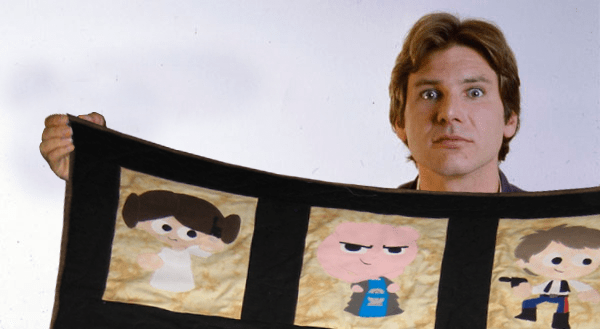
  • Han Sewlo is holding a Star Wars quilt actually made by RobinLovesQuilting. Check it out on her blog.
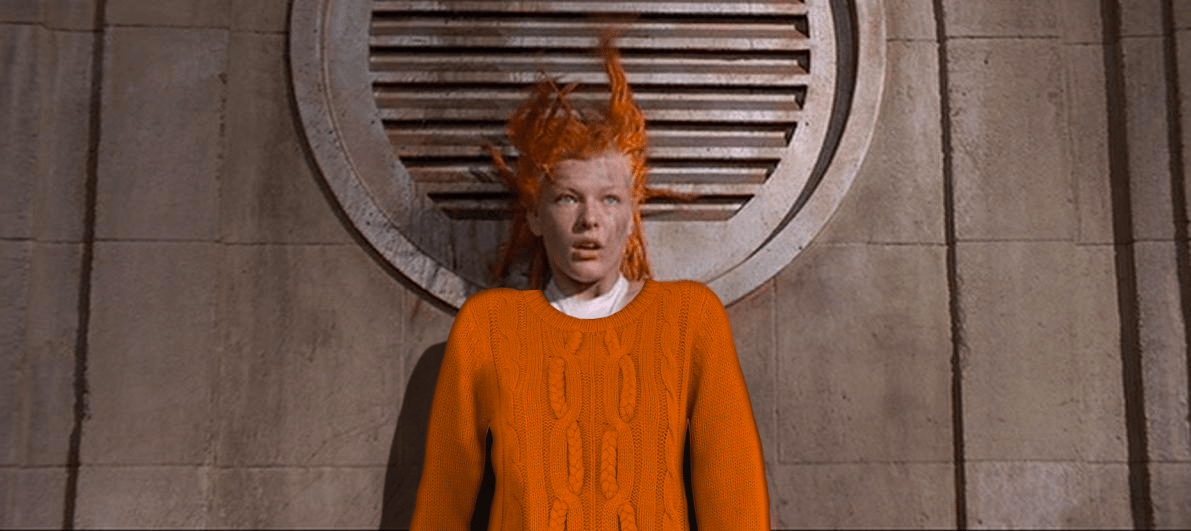
  • Leeloo did not knit that herself. It’s from Dorothy Perkins.
  • Picard is working on a sampler straight from the hilarious Subversive Cross Stitch, specifically the “Bitch, Please” kit. Go buy one, because awesome.

Fifth Element tees

overview

Major thanks to everyone who came out and joined me for the first ever scifiinterfaces.com movie night at The New Parkway in Oakland! It was a sold-out show, and while there were a few glitches, folks are telling me they had a great time and are looking forward to the next one. There will be a more detailed report once the pre-show video comes out. But in the meantime, this: If you didn’t win the trivia contest or weren’t able to attend, you can still get your hands on the “movie night” t-shirts I debuted there.

Allshirts

Head on over to the spreadshirt shop. It’s ugly (with the default CSS). It doesn’t have a custom URL or anything. It only has 5 products at the moment. But hey, that’s all part of the charm if you’d like to wear your sci-fi interface nerdiness with pride.

http://26253.spreadshirt.com/

P.S. I have no idea why the women’s KEEP CLEAR tee is not appearing in orange since I designed it like the Men’s tee, but I have a request with Spreadshirt now. Hopefully it’ll be fixed soon.

Berlin?

I’m thinking the Bay Area has an appetite for maybe two movie nights a year (let me know if I’m wrong) but I’d also love to try this in Berlin. Do you (or someone you know) know of a cinema in Berlin like the New Parkway that might be interested in my replicating this there?

Scripts!

Such a cool collection of interactive voice response systems, with high fives out to everyone who thought up great (and ofttimes obscure) “talkie computers” from decades of sci-fi from the 1950s to the 2000-teens. By name…

ForbiddenPlanet-085
  • kedamono x7
  • Joe Bloch x10
  • dhwood
  • Burning x4
  • Kelley Strang
  • dhwood
  • brightrock
  • Clayton
  • Pixel I/O
  • pavellishin x2
  • Clayton
  • @CarsTheElectric
  • Steve Silvas x2
  • Matt Sheehe
  • Ben
  • Matt Sheehe
  • Joe Bloch
  • pavellishin
  • Matt Sheehe x2
  • Lela x2
  • NP
  • Clayton x2

The list of talkie computers we collected is “Robby the Robot, Adam Link, Jupiter 2, Landru, M-5, Nomad probe, The Oracle, Beta-V, HAL, Colossus, BOXX, Thermostellar Triggering Device, IRAC, the Übercomputer, C-3PO, Alex 7000, Proteus IV, Zen, Orac, Slave, V-Ger, Artificial persons, Dr. Theopolis and TWKE-4, MU-TH-UR 6000, KITT, Replicants, Image Machine, MCP, SAL, Max, Holly, Kryten!, L7, 790, Sphere, Ship [sic], AMEE, Ship, Andromeda Ascendant, Zero, S.A.R.A.H., Andy the Deputy AI, Icarus, KITT, Otto, Gerty, and Jarvis.” Think you could name the movies and TV shows these are from just from these names?

colossus-and-forbin

The next step is to build a collection of the scripts of these interactions, since we’ll be analyzing any peculiar, non-standard-English that we find. I’m down to provide these scripts myself, but it would be easier if we crowdsource it. If you’re up to it, head to the following form to add the metadata and line-by-line script of the interaction. You can often find the scripts with a simple Google Search, or by (popping in the VHS/DVD/Blu-Ray you own, finding a video of the scene on some online video service and transcribing it from there. We are interested in word-perfect transcriptions. Don’t sweat it if you don’t have the time yourself. As of Thanksgiving weekend, I’ll manually complete any unfinished ones that I find.

KITT2000

The form to add scripts: https://docs.google.com/forms/d/
1fLJKW_PviuWezpDKtUrnMO8IH3CE_f9fT4FpQznI6oo/viewform

Screen Shot 2013-11-24 at 22.19.39

A call out for call outs

Hey small slice of the internet. I’m working with an awesome linguist, Anthony Stone of operativewords.com, on a project and since I don’t know everything but you do, I’m wondering if you can help. We’re collecting examples of scenes from more serious movies and TV shows where a human is interacting with a artificial intelligence primarily through speech.

Example 1

In the ST:TOS episode "Mirror, Mirror" Captain Kirk speaks with his computer to learn if the ship could be used to get him back in the "good universe." (This dialogue was featured in the Learning chapter of the book.)

Computer

Example 2: In the movie "Logan’s Run" Logan speaks with the Übercomputer twice: once for questioning about the ankh, and once to report his findings about Sanctuary.

LogansRun128

There are others, but we’d like to collect as many examples as we can to get a good "corpus" to work from on this sooper secret thingy. But of course it’s in the service of a blog post, so contribute away, and we’ll thank you in the post once it finally comes out. What do you think: Can you name any?