Communications with Sally

image01

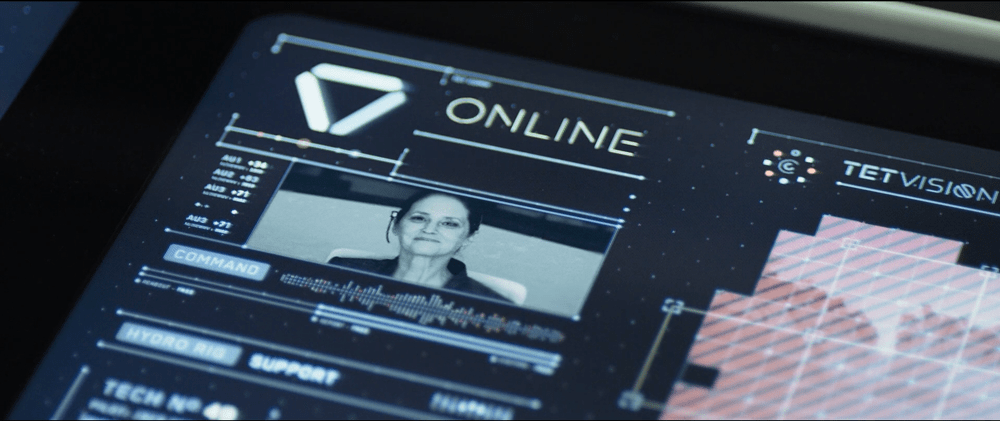
While Vika and Jack are conducting their missions on the ground, Sally is their main point of contact in orbital TET command. Vika and Sally communicate through a video feed located in the top left corner of the TETVision screen. There is no camera visible in the film, but it is made obvious that Sally can see Vika and at one point Jack as well.
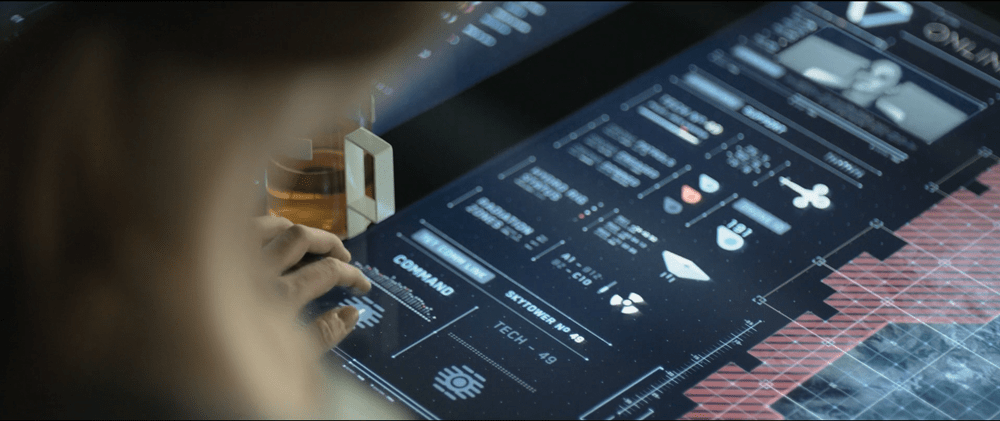
image00

The controls for the communications feed are located in the bottom left corner of the TETVision screen. There are only two controls, one for command and one for Jack. The interaction is pretty standard—tap to enable, tap again to disable. It can be assumed that conferencing is possible, although certain scenes in the film indicate that this has never taken place.
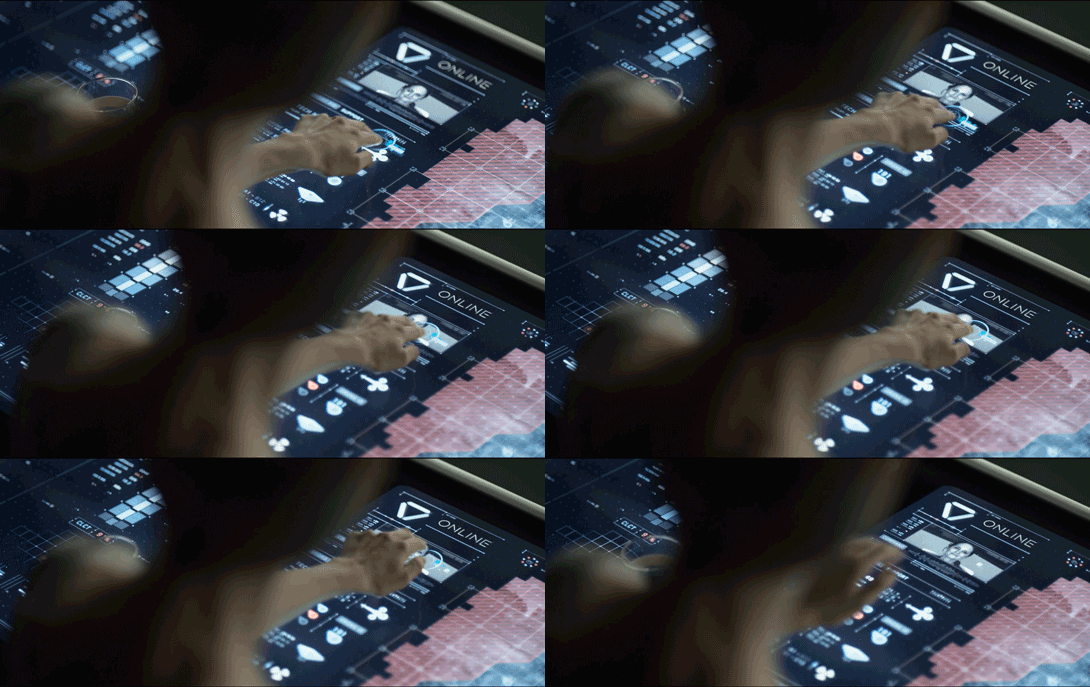
image02

Upon first connecting with Sally each morning, Vika uploads data to the TET by using a two-finger gesture to drag the information up to Sally’s video display. There is no footage showing where she taps to begin the gesture, but it seems to originate at the hydro-rig symbol since Vika is discussing hydro-rig support as she interacts with the screen.

Same interaction for different functions

When Vika sends the hydro-rig coordinates to Jack in the Bubbleship, she is using the exact same interaction as she uses here to send the hydro-rig status data to the TET. When she uses the two-finger gesture to drag from the hydro-rig symbol to the Bubbleship, GPS coordinates are being sent. When she uses the same gesture to drag from the hydro-rig symbol to Sally’s video feed, it sends data on the hydro-rig status. How does the system know what data to send when?

It’s possible that this is another instance of agentive tech in which the system determines what data to send based on where the gesture ends. However, as mentioned in another post, it would be better to use consistent interactions for similar tasks by using the two-finger gesture to upload data to the TET and to use the one-finger gesture for sending coordinates directly with the map interface.

Or better yet, auto-upload the data to the TET upon connection and make it fully agentive. Not great for our heroes’ sense of control, but from the TET’s perspective…

TET communications status
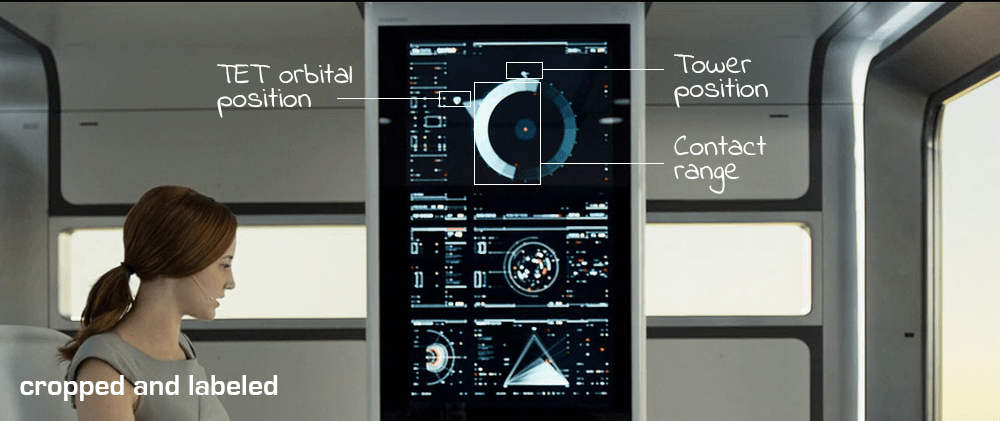
image03

Since Vika relies heavily on the TET’s surveillance and communications capabilities, it is important for her to know when the TET is going to be within contact range. The TET system status feed, which is the screen at the top of the upright section of the desk, monitors the TET’s orbital position in relation to the tower.

As labeled in the image above, the tower position is indicated by an icon located at the top of the circle (the earth) and remains stationary as the TET icon rotates, representing the real-time orbital position. The lighter blue gradient area of the monitor indicates the TET’s range of communications. The darker area indicates when the TET is outside of contact range.

No thinking required

This is one of the simplest interfaces in the film. The visualization of data is very easy to understand and allows for a quick glimpse of all of the information Vika needs without having to think about it. The gradients represent the strength of the signal – the more solid light blue seen directly under the TET symbol indicates a full-strength signal while the darker gradients represent a weaker signal.

One of the main tenets of user experience design is to create technology that would allow anyone, regardless of their technical background, to quickly and easily use the interface with as little mental processing power as possible. Make the design obvious and self-explanatory with no training required.

Don’t make the user have to think about it.

Hydro-rig Monitoring

image00

As a part of their morning routine, Jack makes the rounds in his Bubbleship to provide a visual confirmation that the hydro-rigs are operating properly. In order to send the hydro-rig coordinates to the Bubbleship, Vika:

  1. Holds with two fingers on the hydro-rig symbol on the left-hand side panel of the TETVision feed
  2. A summary of coordinates is displayed around the touchpoint (hydro-rig symbol)
  3. Drags the data up to the Bubbleship symbol on the side panel

Inconsistent interactions

When Vika sends the drone coordinates, she interacts directly with the map and uses only one finger. Why is the interaction for sending hydro-rig coordinates different than the interaction for sending drone coordinates?

image01

Perhaps Vika uses a different interaction here because she is sending the coordinates for all three rigs at the same time. However, since the three rigs are all in the same general location, that doesn’t really seem necessary.

It would be better to maintain a consistent interaction for the same function—in this case sending coordinates. This would leave the side panel with a more consistent interaction for uploading larger amounts of data to the TET, which will be covered in a separate post.

image02

The hydro-rig status feed on the left of the desk display is broken up into two sections. The main section consists of a diagram showing the resource collection status for each rig. The lower section of the feed indicates the grid position of each rig along with some additional data elements that are too blurry to make out.

Don’t forget the main objective

After the scavs take out one of the hydro-rigs in a gigantic show of fireworks, there is no noticeable change in the hydro-rig status feed. Where is the alert messaging stating that one of the rigs is offline? At the very least there should be an alert message similar to the red offline messaging displayed on the drone status feed. However, the screen appears to be unchanging throughout the film.

The main objective of Jack and Vika’s team is to keep the rigs safe. That’s why they are on earth and that is why the desktop with all of its fabulous capabilities was created. Don’t forget the main purpose of the design.

image03

At least there is a modest indication of a greyed-out symbol on the TETVision feed that indicates the rig is down—albeit very modest. There is not much of a clear visual distinction between the online and offline rigs. The colors are so similar, that a person who is colorblind may not even notice the difference.

image04

Made using tools at http://www.etre.com/tools/colourblindsimulator/

In this case, it’s likely that the TET selected teams who met fitness prerequisites, but it’s a good reminder for those of us doing real-world design for the general population: Don’t forget about accessibility in design. Following accessibility standards in design ensures that as many people as possible are able to use the interface.

Consistency is key

Overall, the system mostly does what it is supposed to do, but doesn’t seem to have been as well thought out or as consistent in design as the other systems in the film. Consistency should be maintained unless there’s a damned good reason not to, whether it’s with interactions or UI messaging.

Users tend to be more comfortable and confident when working with an interface that has consistent patterns. If a user expects a gesture or command to behave a certain way and it does, this consistency in design provides a more efficient workflow by enabling users to confidently interact with technology, without having to remember arcane details about what does what when.

Drone Status Feed

Oblivion-Desktop-Overview-002
Oblivion-Desktop-DroneMonitor-001


As Vika is looking at the radar and verifying visuals on the dispatched drones with Jack, the symbols for drones 166 and 172 begin flashing red. An alert begins sounding, indicating that the two drones are down.

Oblivion-Desktop-DroneCoordinates

Vika wants to send Jack to drone 166 first. To do this she sends Jack the drone coordinates by pressing and holding the drone symbol for 166 at which time data coordinates are displayed. She then drags the data coordinates with one finger to the Bubbleship symbol and releases. The coordinates immediately display on Jack’s HUD as a target area showing the direction he needs to go.

Simple interactions

Overall, the sequence of interactions for this type of situation is pretty simple and well thought out. Sending coordinates is as simple as:

  1. Tap and hold on the symbol of the target (in this case the drone) using one finger
  2. A summary of coordinates data is displayed around the touchpoint (drone symbol)
  3. Drag data over to the symbol of the receiver (in this case the Bubbleship)

Then on Jack’s side, the position of the coordinates target on his HUD adjusts as he flies toward the drone. Can’t really get much simpler than that.

However…

When Vika initially powers up the desktop, the drone status feed already shows drones 166 and 172 down. This is fine, except the alert sound and blinking icons on the TETVision don’t occur until Jack has already reached the hydro-rigs. This is quite a significant time lag between the drone status feed and the TETVision feed. It would be understandable if there was a slight delay in the alert sound upon startup. An immediate alert sound would likely mean there is something wrong with the TETVision system itself. That said, the TETVision drone icons should at the very least already be blinking red on load.

Monitoring drone 166

Oblivion-Desktop-DroneMonitor-005

As Jack is repairing drone 166, Vika watches the drone status feed on her desktop. The drone status feed is a dedicated screen to the right of the TETVision feed.

Oblivion-Desktop-DroneMonitor-000

It is divided into two main sections, the drone diagnostic matrix to the left and the drone deployment table to the right.

The dispatched drone table lists all drones currently working the security perimeter and lists an overview of information including drone ID, a diagram and operational status. The drone diagnostic matrix shows data such as fuel status and drone positioning along the perimeter as well as a larger detailed diagram of the selected drone.

Oblivion-Desktop-DroneMonitor

By looking at the live diagnostics diagram, Vika is able to immediately tell Jack that the central core is off alignment. As soon as Jack finishes repairing the central core, the diagram updates that the core is back in alignment and an alert sound pings.

How does the feed know which drone to focus on?

Since there is no direct interaction with this monitor shown in the film, it is assumed to be an informational display. So, how does the feed know which drone to focus on for diagnostics?

One possibility could be that Jack transmits data from the ground through his mobile drone programmer handset, which is covered in another post. However, a great opportunity for an example of agentive tech would be that when Vika sends the drone coordinates to the Bubbleship, the drone status feed automatically focuses on that one for diagnostics.

Clear messaging in real-time…almost

Overall, the messaging for drone status feed is clear and simple. As seen in the drone deployment table, the dataset for operational drones includes the drone ID number and a rotating view of the drone schematic. If the drone is down, the ID number fades and the drone schematic is replaced with a flashing red message stating that the drone is offline. Yet, when the drone is repaired, the display immediately updates to show that everything is operational again.

This is one of the basic fundamentals of good user interface design. Don’t let the UI get in the way and distract the user.

Keep it simple.

Vika’s Desktop

Oblivion-Desktop-Overview

As Jack begins his preflight check in the Bubbleship, Vika touches the center of the glass surface to power up the desktop that keeps her in contact with Sally on the TET and allows her to assist and monitor Jack as he repairs the drones on the ground.

The interface components

Oblivion-Desktop-Overview-000

The desktop is broken up into five main screens. The central screen is the TETVision map, which is a radar map used for communications, and monitors the Bubbleship, drones, and scav activity.

To the left of the TETVision map is a Hydro-rig status feed that keeps Vika informed of the water collection progress. Then on the right of the map is the drone status feed, which provides drone vital statistics, deployment and fuel status.

Oblivion-Desktop-Overview-000b

The upright section of the desktop contains two screens. The top screen is the TET system status feed, which monitors the TET’s orbit, and communications status. The second screen monitors the weather systems and wind velocity vectors, which would have an affect on the Bubbleship and drone flight safety.

Quick power-up

Powering on the desktop is virtually instantaneous and is as simple as touching the center of the table. One possible explanation for the speed is that the desktop goes into sleep mode and is in an always-on state. There are a couple of scenes in the film when the TET is able to access the desktop remotely that would support this assumption.

A possible method of power-down would be to tap and hold for a determined period of time. Sadly, there is no film footage that shows Vika shutting down the system.

Multiple versus single user

Oblivion-Desktop-Overview-003

The scale of this desktop is a bit large for a single user who needs to access life-saving information quickly. The display size and setup in the film is generally used for collaborative space so that multiple people can comfortably view and manipulate the data at the same time.

This large scale causes Vika to constantly lean over the table to see information for various reasons including glare, reach and angle of the displays. This could be stressful on the body when interacting with the desktop over long periods of time each day.

A better solution

Vika is only shown interacting with the TETVision map and not with any of the other feeds. If the map is the only screen that is interactive, a more ergonomic setup could be utilized to minimize glare and reach. This would allow Vika to see the vital information at a glance and still enable her to comfortably interact with the TETVision map.

Oblivion-Desktop-Overview-Ergonomics

Don’t forget the user’s needs

Overall, Vika’s desktop is a beautiful piece of technology that performs its function very well. However, in a real-world situation, it is important to remember that Vika will be using this equipment for possibly long periods of time and needs quick access to vital information. Having to roll back and forth between screens during an emergency situation could mean the difference between life and death for Jack while out in the field.