Velociraptor Lock

The velociraptor pen is a concrete pit, topped with high-powered electric fences.  There are two ways into the pen: a hole at the top of the pen for feeding, and a large armored door at ground level for moving ‘raptors in and out. This armored door has the first interface seen in the film, the velociraptor lock.

JurassicPark_velociraptorlock03

 Velociraptors are brought from breeding grounds within the park to a secure facility in a large, heavily armored crate. Large, colored-light indicators beside the door indicate whether the armored cages are properly aligned with the door.  The light itself goes from red when the cage is being moved, to yellow when the cage is properly aligned and getting close to the door, to green when the cage is properly aligned and snug against the concrete walls of the velociraptor pen.  There is also a loud ‘clang’ as the light turns to green.  It isn’t clear if this is an audio indicator from the pen itself, the cage hitting the concrete wall, or locks slamming into place; but if that audio cue wasn’t there, you’d want something like it since the price for getting that wrong is quite high.

The complete interface consists of four parts (kind of, read on): The lights, the door, the lock, and the safety. More on each below.

1. The Deceiving Lights

The lights are the most obvious part of the system (aside from the cage and pen).  Everyone who is watching the cage also has a clear view of the lights – there is an identical set on the other side of the cage for the other half of the safety/moving crew.

sidelights

2. The Door

The Velociraptor pen’s door is perfectly shaped to accept the heavily armored cage, and is equipped with a rail system to keep the cage aligned properly with the door.  Though it takes eight workers to move the cage, they appear to be able to push the cage reasonably easily. When the light turns green, the workers move back to allow the gate to be manually raised on the cage, letting the caged velociraptor escape into the pen.

3. The “Lock”

JurassicPark_velociraptorlock01
Or, lack thereof…

Every indication (the lineup of the cage, the green lights, and the heavy metallic ‘clang’) gives the feeling of a secure mating between the cage and the pen.  All of the workers relax, as if they’re sure they’re as safe as they can be. But you can be certain, this is a false sense of security.

As soon as the velociraptor decides to test the lock, it is able to push the cage away from the pen wall.  The light near the door instantly changes from green back to red.

Narratively, this underscores some of the risks of the park, i.e. that it’s cheaply engineered despite appearances, and extra-diegetically sets the audience on edge since it’s not sure what it can trust. But, for us in the real world, given the many indications that the system was safe, it should have actually been safe.

4. The Safety

When the clever velociraptor knocks the cage back, a worker falls in and becomes an unscheduled snack. Attendant workers try to help using…

The Cattle Prods

When the gate master falls and gets snatched by the velociraptor in the cage, workers immediately rush in and start hitting her with cattle prods.  There are at least six prods being used, possibly more.

Since this is the first line of backup defense, the cattleprods should have been iterated until they actually deterred the ‘raptors.  Clearly, effort went into making the perimeter defenses secure against the larger dinosaurs. The same effort should have gone into making the cattle prods effective against velociraptors.

Design for Success

The Velociraptor pen door seems custom-designed for serious failure: No hard locks to keep the cage in place, horrible sight-lines, and manual controls in places that make it dangerous for workers. Even the solid feedback system only adds to the danger. It lulls the workers into thinking the system is safe.

Most, if not all, of these issues would be solved by a simple physical locking device on the cage. Something to hold the cage in place while the doors are open would maintain a secure pen and keep everyone outside safe. It would also eliminate the need for most of the support crew, who only end up getting in each other’s way.

To add to the safety, the park designers should have paid more attention to where people would be standing during the transfer process.  The armed guards (theoretically there to be a second line of defense), are placed in such a way that only a few of them are able to effectively fire.  Other guards on scene would have to fire past their fellow guards.

Presumably, this is why the armed guards don’t actually fire at the ‘raptor when Muldoon shouts to “Shoot her! Shooooooot her!!”

JurassicPark_velociraptorlock4

Keep the feedback…

The feedback systems of the cage are remarkably successful, for a placebo. The lights, sounds, and placement keep the workers and audience calm right up until things go horribly wrong.  With the addition of Muldoon’s organizational skill and animal handling skills, the feedback system is worth taking notes on.

…but make it mean something

The velociraptor pen was designed to tell the workers what state it was in, but not to actually keep them safe.  Muldoon’s precautions try to make up for the system’s failures, but only add to the problems as the workers trip over each other.

Portal Monitor

After Loki has enthralled Selvig, enthralled-Hawkeye lets Loki know that, “This place is about to blow and drop a hundred feet of rock on us.” Selvig looks to the following screen and confirms, “He’s right. The portal is collapsing in on itself.

Portal_monitoring

This is perhaps one of the most throwaway screens in the film, given the low-rez twisty graphics that could be out of Lawnmower Man, its only-vague-resemblance to the portal itself…

c.f.

c.f.

…the text box of wildly scrolling and impossible to read pink code with what looks like a layer of white code hastily slapped over it, and—notably—no trendline of data that would help Selvig quickly identify this Very Important Fact. Maybe he’s such a portal whisperer that he can just see it, but why show the screens rather than show him looking up to the blue thing itself?

There might be some other data on the left of this bank of screens seen a few seconds later in the background…

Avengers-Wormhole-03_cropped

…but it has more red text overlays, so I’m disinclined to give it the blurry benefit of the doubt.

Fair enough, this is there merely to establish Selvig’s enthrallment, and the scientific certainty of the stakes for the next beat. But, we see his eyes, and the certainty is evidenced by everything collapsing. We don’t need scientific assurance. If the designers were not given time to make it passable, I wish that the beat had been handled without a view of the screens rather than shaky-cam.

Loki’s glaive: Teleconferencing

Avengers-Glaive-Teleconferencing-01

When his battalion of thralls are up and harvesting Vespene Gas working to stabilize the Tesseract, Loki sits down to check in with his boss’ two-thumbed assistant, an MCU-recurring weirdo who goes unnamed in the movie, but which the Marvel wiki assures me is called The Other.

To get into the teleconference, Loki sits down on the ground with the glaive in his right hand and the blue stone roughly in front of his heart. He closes his eyes, straightens his back, and as the stone glows, the walls around him seem to billow away and he sees the asteroidal meeting room where The Other has been on hold (listening to some annoying Chitauri Muzak no doubt).

Avengers-Glaive-Teleconferencing-09

The Other does not see the Loki sitting on the ground in MCU-prime (MCU-1°). Instead, he addresses the avatar of Loki (in MCU-2°) which appears with a cyan projection-ray flourish, in Asgardian costume. In addition to the alteration of his appearance, the glaive looks different. It is much taller and thinner, and its blades more pronounced in this projection, i.e. looking more like a real scepter.

Avengers-Glaive-Scepter
Now, that’s a scepter.

From an interface standpoint, there is one thing to note and four questions for this interface.

Nota Bene

Note the modification of appearances. The teleconference could have worked like a video camera, showing Loki cross-legged on the floor. In the Make It So book I argued that advanced communication systems should interpret, not just report, and that’s what the glaive is doing here. The altered appearance is better for Loki since he needs to project an air of authority and command in the situation, and the regal accoutrements helps him do that. If only we knew how he selected the outfit. Was there some system setup? Is it just the default? Is this mystically how he sees himself? Of course The Other knows he’s looking at a representation and isn’t completely buying into it, but how much worse for Loki would this meeting gone if he showed up like a schlub?

Questions that need answering before it can really be evaluated.

One: What do others around MCU-1° Loki see. How do thralls know he’s in teleconference? That’s important so they know not to interrupt him unless it’s really important. My guess is the glowing crystal. Between that and Loki’s closed eyes, any onlooker could suss out that he was in a call. (For comparison/contrast, I noted a similar signal in The Fifth Element headsets.)

Two: What’s the degree of immersion. Can teleconference Loki hear anything in MCU-1°? If so how does he know which universe a given sound comes from? If MCU-1° is softened, what’s the threshold by which it is let through? Can a thrall yell to get his attention? If MCU-1° is completely muted enemies would have a massive advantage over him while in teleconference.

Three: How does he control the avatar? In MCU-1°, he’s seated and unmoving, so let’s presume it’s a control-by-mind interface. Certainly quite a natural control mechanism (with a perfectly mapped interface).

Finally: How does he control the interface? If the system is perfectly immersive, he needs some set of escape codes to tell the interface, “I want to leave this teleconference now,” or “Paused to humiliate a thrall,” or “No bars, let me call you back.” He might be able to do it with thought, of course, but it might be more useful to imagine a gesture or spoken command to do the same.

Sadly, we don’t get to see how we does this, because the Other bullies him out of the conference with a mean gesture: The Other pushes his hand against Loki’s head and *poof* he’s suddenly out of conference. And while Loki’s movements in MCU-2° don’t require his movement in MCU-1°, his MCU-1° head does move after being shoved by the Other’s gesture.

Teleconference-push-out

That’s an awesome narrative moment to show the audience that Loki has made a deal with some guys more powerful than him and who show him no respect. As powerful as he is, he might be out of his depths, and the stakes are real.

Loki’s glaive: Projectile gestures

TRIGGER WARNING: IF YOU ARE PRONE TO SEIZURES, this is not the post for you. In fact, you can just read the text and be quit of it. The more neurologically daring of you can press “MORE,” but you have been forewarned.

If the first use of Loki’s glaive is as a melée weapon, the second use is of a projectile weapon. Loki primes it, it glows fiercely blue-white, and then he fires it with usually-deadly accuracy to the sorrow of his foes.

This blog is not interested in the details of the projectile, but what is interesting is the interface by which he primes and fires it. How does he do it? Let’s look. He fires the thing 8 times over the course of the movie. What do we see there?

Priming

At first I thought there was no priming mechanism, or that it was invisible. After all, we don’t see him squeeze it or anything. But braving the gifs I noticed that there is a gesture that precedes the glow, and that’s his expression. He gets haterface right before he fires. The only time we can’t verify it is when he’s not looking at the camera. Which is a nifty realization that the firing mechanism is an affective interface—a brain interface capable of deducing emotion.

Firing

If that’s how he primes it, loading the chamber so to speak, how does he launch it? Most of the time he fires it, he does this gesture thing, where he kind of slams the projectile away: With the glaive pointed forward in his right hand, he cocks his left arm back and then in one fast jerk, he pulls the glaive back and thrusts his left hand forward towards the target, counterbalancing the weight and sending the Magic Missile to do its nefarious work.

But then there’s this fight with Thor atop Stark tower, and for one particularly dancy move he spins around, lays the glaive across his shoulders until it’s pointed at his brother, and it fires. There’s no cocking back or counterbalancing. It just goes.

So what’s going on there? Well, it’s not clear, but at the very least it means that the thing is responding to something other than his usual gesture. We can’t see his face, so it’s Occam-logical that it’s affective, i.e. responding to his haterface again.

Ok, then, what’s all the dramatic gesture for throughout the rest of the film? Well, I think Stark said it best when he explained that, “Loki is a full-tilt diva. He wants flowers. He wants parades.” He must dance his hate, and the glaive lets him do that. Better him than Thanos, I guess.

Note that in this way the glaive serves a humane purpose similar to what Ruby Rhod’s staff does for him: it allows him to express his abundance of personality. I’m poking a bit of fun, but in all seriousness I’m quite fond of expressive technology, of things that let us do more than do, and convey a bit of who we are.

It’s nice to see that in a sci-fi interface. Even if it’s a deadly alien weapon.

Usually he’s all…
Staff-bolt03
Staff-bolt05

But this one time he’s all…

Staff-bolt08

Loki’s glaive

When Loki materializes on the dais, he is holding one the key objects to The Avengers and indeed the whole Marvel Cinematic Universe multi-franchise Infinity Stones plot. What is it?

Avengers-Glaive-02

NIck Fury calls the thing a spear. Others call it a staff. The official Disney wiki calls it the Chitauri Sceptre, but this thing is very much a tool. Over this and the next several posts, I’ll talk about how it is used alternately as the following.

  • A melée weapon
  • A projectile weapon
  • A bad-mojo radiator
  • A teleconferencing device
  • An enthrallment knife

Notably, in no scene does he carry it on a ceremonial occasion as a symbol of sovereignty, so scepter really doesn’t fit our purposes. What does? Well, any RPG fan worth their Deck of Many Things knows that the blades-on-a-stick category of weapons are many and nuanced. Finding a perfect term is tough since historians and medievalists have categorized other pole arms according to their construction and function, and none of them are quite like this one.

Avengers-Glaive

So though it hurts to let go of possibilities like falx, svärdstav, or bohemian earspoon—and also because I apparently hate the SEO that would earn me all the millionsI think the thing fits most readily into the category of glaive, since glaives are defined as a single-edged (I know, but it’s not quite double-edged either) slicing pole arm with a piercing tip. Like this one. So debate the choice in the comments if you must, but you’ll have to be pretty convincing since I’ve already written and scheduled the other posts and I have a lot to do in the UK at UX London over the next weeks.

And of course recognizing it as a glaive also gives us an opportunity for this joke.

toglaive

Odyssey Navigation

image07

When the Odyssey needs to reverse thrust to try and counter a descent towards the TET, Jack calls for a full OMS (Orbital Maneuvering System) burn. We do not see what information he looks at to determine how fast he is approaching the TET, or how he knows that the OMS system will provide enough thrust.

We do see 4 motor systems on board the Odyssey

  1. The Main Engines (which appear to be Ion Engines)
  2. The OMS system (4 large chemical thrusters up front)
  3. A secondary set of thrusters (similar and larger than the OMS system) on the sleep module
  4. Tiny chemical thrusters like those used to change current spacecraft yaw/pitch/roll (the shuttle’s RCS).

image05

After Jack calls out for an OMS burn, Vika punches in a series of numbers on her keypad, and jack flips two switches under the keypad. After flipping the switches ‘up’, Jack calls out “Gimbals Set” and Vika says “System Active”.

Finally, Jack pulls back on a silver thrust lever to activate the OMS.

OMS

Why A Reverse Lever?

Typically, throttles are pushed forward to increase thrust. Why is this reversed? On current NASA spacecraft, the flight stick is set up like an airplane’s control, i.e., back pitches up, forward pitches down, left/right rolls the same. Note that the pilot moves the stick in the direction he wants the craft to move. In this case, the OMS control works the same way: Jack wants the ship to thrust backwards, so he moves the control backwards. This is a semi-direct mapping of control to actuator. (It might be improved if it moved not in an arc but in a straight forward-and-backward motion like the THC control, below. But you also want controls to feel different for instant differentiation, so it’s not a clear cut case.)

image03

Source: NASA

What is interesting is that, in NASA craft, the control that would work the main thrusters forward is the same control used for lateral, longitudinal, and vertical controls:

image00

Source: NASA

Why are those controls different in the Odyssey? My guess is that, because the OMS thrusters are so much more powerful than the smaller RCS thrusters, the RCS thrusters are on a separate controller much like the Space Shuttle’s (shown above).

And, look! We see evidence of just such a control, here:

image06

Separating the massive OMS thrusters from the more delicate RCS controls makes sense here because the control would have such different effects—and have different fuel costs—in one direction than in any other. Jack knows that by grabbing the RCS knob he is making small tweaks to the Odyssey’s flight path, while the OMS handle will make large changes in only one direction.

The “Targets” Screen

image02

When Jack is about to make the final burn to slow the Odyssey down and hold position 50km away from the TET, he briefly looks at this screen and says that the “targets look good”.

It is not immediately obvious what he is looking at here.

Typically, NASA uses oval patterns like this to detail orbits. The top of the pattern would be the closest distance to an object, while the further line would indicate the furthest point. If that still holds true here, we see that Jack is at the closest he is going to get to the TET, and in another orbit he would be on a path to travel away from the TET at an escape velocity.

Alternatively, this plot shows the Odyssey’s entire voyage. In that case, the red dotted line shows the Odyssey’s previous positions. It would have entered range of the TET, made a deceleration burn, then dropped in close.

Either way, this is a far less useful or obvious interface than others we see in the Odyssey.

The bars on the right-hand panel do not change, and might indicate fuel or power reserves for various thruster banks aboard the Odyssey.

Why is Jack the only person operating the ship during the burn?

This is the final burn, and if Jack makes a mistake then the Odyssey won’t be on target and will require much more complicated math and piloting to fix its position relative to the TET. These burns would have been calculated back on Earth, double-checked by supercomputers, and monitored all the way out.

A second observer would be needed to confirm that Jack is following procedure and gets his timing right. NASA missions have one person (typically the co-pilot) reading from the checklist, and the Commander carrying out the procedure. This two-person check confirms that both people are on the same page and following procedure. It isn’t perfect, but it is far more effective than having a single person completing a task from memory.

Likely, this falls under the same situation as the Odyssey’s controls: there is a powerful computer on board checking Jack’s progress and procedure. If so, then only one person would be required on the command deck during the burn, and he or she would merely be making sure that the computer was honest.

This argument is strengthened by the lack of specificity in Jack’s motions. He doesn’t take time to confirm the length of the burn required, or double-check his burn’s start time.

image01

If the computer was doing all that for him, and he was merely pushing the right button at the indicated time, the system could be very robust.

This also allows Vika to focus on making sure that the rest of the crew is still alive and healthy in suspended animation. It lowers the active flight crew requirement on the Odyssey, and frees up berths and sleep pods for more scientific-minded crew members.

Help your users

Detail-oriented tasks, like a deceleration burn, are important but let’s face it, boring. These kinds of tasks require a lot of memory on the part of users, and pinpoint precision in timing. Neither of those are things humans are good at.

If you can have your software take care of these tasks for your users, you can save on the cost of labor (one user instead of two or three), increase reliability, and decrease mistakes.

Just make sure that your computer works, and that your users have a backup method in case it fails.

TETVision

image05

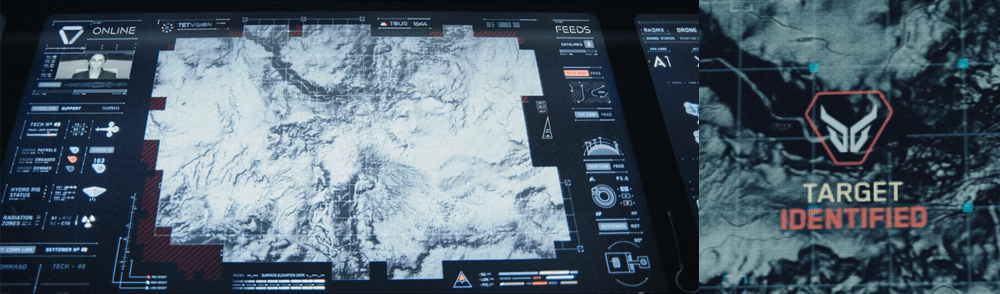
The TETVision display is the only display Vika is shown interacting with directly—using gestures and controls—whereas the other screens on the desktop seem to be informational only. This screen is broken up into three main sections:

  1. The left side panel
  2. The main map area
  3. The right side panel

The left side panel

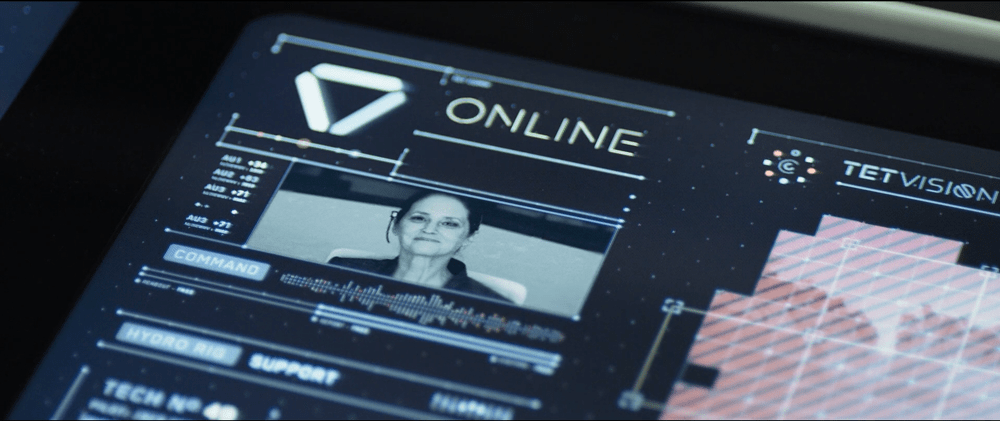
The communications status is at the top of the left side panel and shows Vika the status of whether the desktop is online or offline with the TET as it orbits the Earth. Directly underneath this is the video communications feed for Sally.

Beneath Sally’s video feed is the map legend section, which serves the dual purposes of providing data transfer to the TET and to the Bubbleship as well as a simple legend for the icons used on the map.

The communications controls, which are at the bottom of the left side panel, allow Vika to toggle the audio communications with Jack and with Sally.

The main map area

The largest section is the viewport where the various live feeds are displayed. The main map, which serves as a radar, as well as the remote video feeds she uses to monitor Jack are both in this section of the display.

The right side panel

The panel on the right side of the map contains the video feed controls, which allow Vika to toggle between live footage from the Bubbleship, the TET, and of course, the main map view.

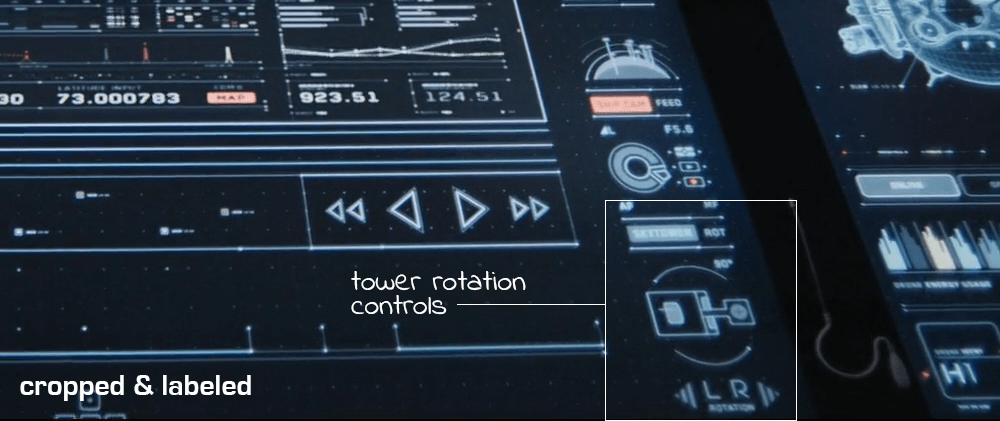
Although never shown in use in the film, the bottom right of the screen houses the tower rotation controls. This unused control is the only indication the capability even exists, so it is unknown whether the tower rotates 360 degrees or whether it’s limited to set points. (More on this below.)

It has robust capabilities

image02

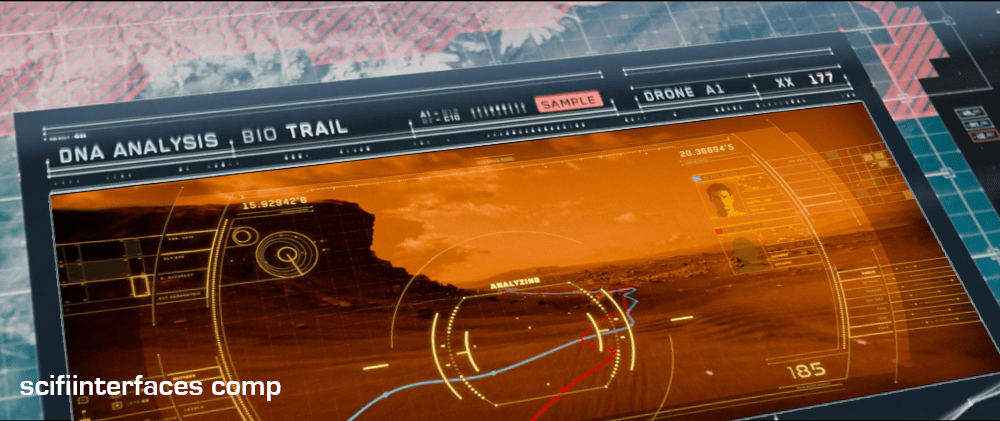
At one point in the movie, Vika is able to use the drones to search for bio trail signatures when Jack is abducted by the scavs.

image06

Vika is also able to detect and decode various types of signals such as the morse code message sent by Jack or the rogue signal sent out by the scavs.

image08

And, probably unbeknownst to Jack and Vika, the TETVision can be controlled remotely from the TET to allow Sally access to the data stored on the desktop—as shown at one point in the movie, when Sally pulls up a past bio trail signature to send drones after Jack and the scavs.

It’s missing a critical layer of data

image03

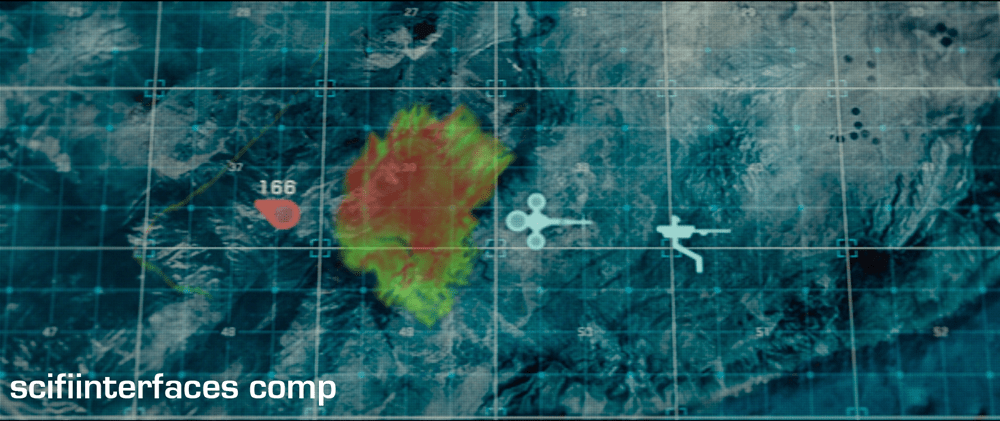
At the beginning of the film, as Jack heads toward the downed drone 166, he suddenly encounters a dangerous lightning storm and nearly plunges to his death when the Bubbleship loses power. His signature disappears from the TETVision map, but from Vika’s perspective there is no indication as to what could have happened — or that there was any danger to begin with.
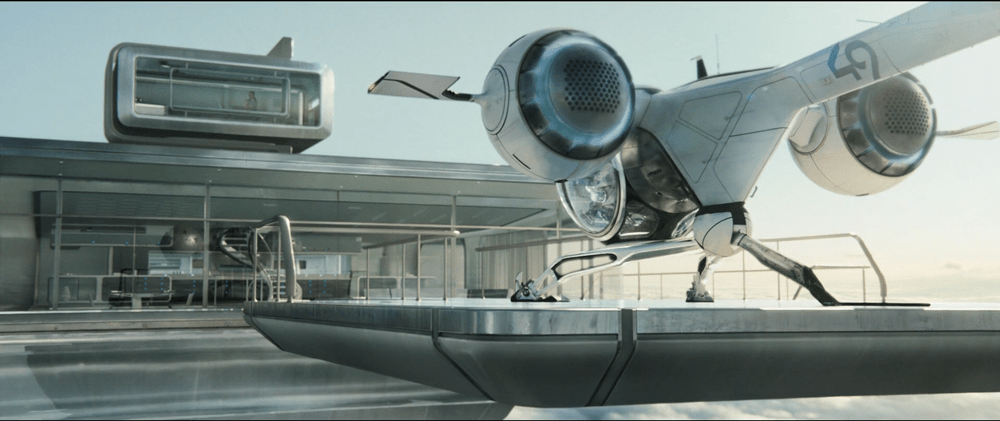
image01

Since the weather is unstable and constantly changing, it would have been better to include a weather overlay so that Vika could have notified Jack of the storm—allowing him to fly around it instead of straight into it.

It’s got some useless bits

image09

The tower rotation controls are never shown in use in the film, so it’s not clear what benefit rotating the tower would serve. The main purpose of their mission is to ensure the hydro-rigs are secure and functioning properly, not getting an optimal view.

image04

The tower is almost completely surrounded by windows as it is. And since the tower windows already face the hydro-rigs, what would be the benefit of changing vantage points?

It seems that the space could be used for something more beneficial to Vika such as bike, hydro-rig and drone cam feeds. This would provide Vika with more eyes on the ground, allowing her the additional support to keep Jack safe and monitor scav activity.

From an clustering standpoint, it would also fall in line logically with the other feed controls on the right side panel.

And some unnecessary visual feedback

image07

Towards the end of the movie, Sally is trying to find Jack and the scavs. She accesses Vika’s desktop remotely in order to pull up the bio trail records. Although no one is around to see the information, the TETVision displays the process as it happens. Of course, this is necessary for the narrative to progress, but in a real-life situation Sally would only need to see the data on her side—not from the desktop in Tower 49. If they’ve managed interstellar travel, cloning, terraforming, and cognitive reprogramming of alien species, they’re not likely still using VNC. This type of interaction should simply run in the background and not be visible on screen.

Better: Provide useful visuals

When a drone picks up a bio trail signal, a visual of a DNA sequence is displayed. Since the analysis is being conducted by Sally on the TET, it seems that this information isn’t really useful to Vika at all.

image00

From Vika’s point of view it seems like the actual trail would be more important, so why not show a drone cam feed complete with the HUD overlay? She could instantly gain more information by seeing that there are two bio trails—proving that Jack has been captured by the scavs and taken to another location.

Sleep Pod—Wake Up Countdown

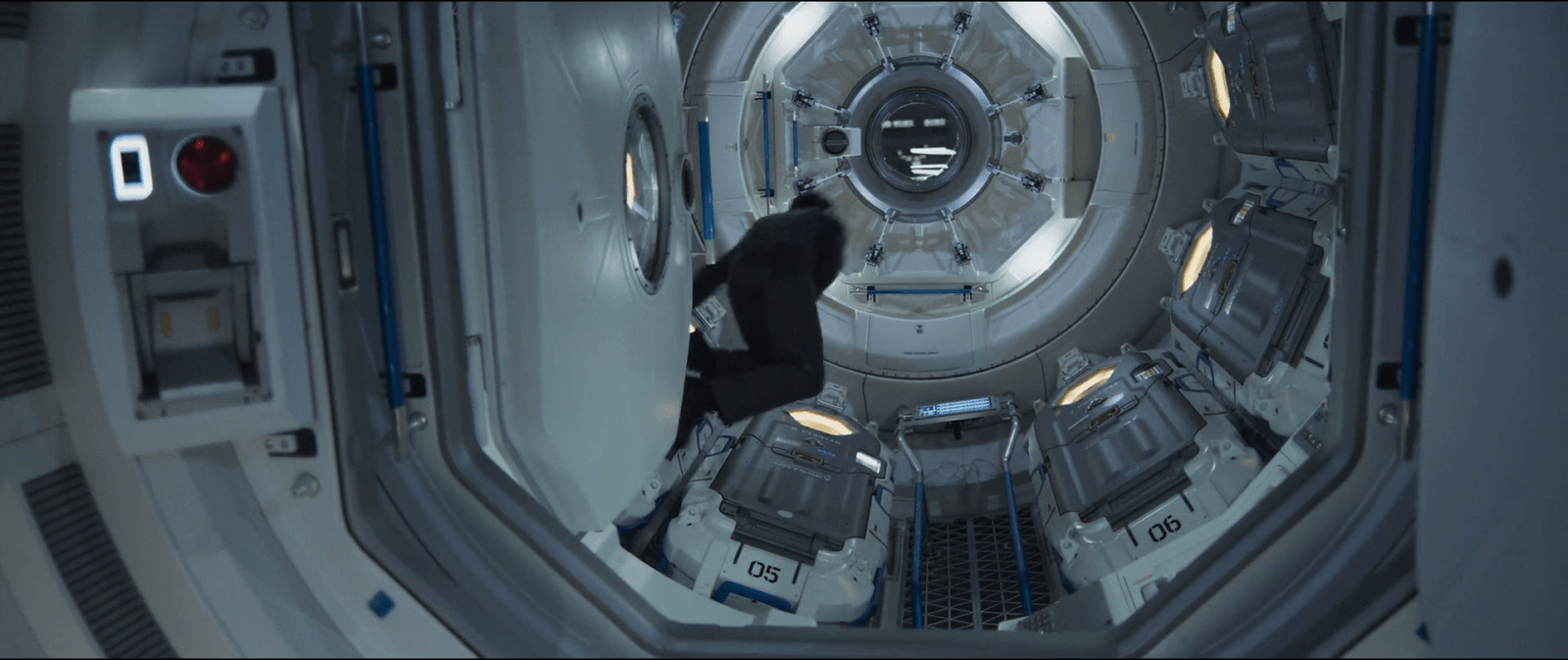
On each of the sleep pods in which the Odyssey crew sleep, there is a display for monitoring the health of the sleeper. It includes some biometric charts, measurements, a body location indicator, and a countdown timer. This post focuses on that timer.
To show the remaining time of until waking Julia, the pod’s display prompts a countdown that shows hours, minutes and seconds. It shows in red the final seconds while also beeping for every second. It pops-up over the monitoring interface.

image03
Julia’s timer reaches 0:00:01.

The thing with pop-ups

We all know how it goes with pop-ups—pop-ups are bad and you should feel bad for using them. Well, in this case it could actually be not that bad.

The viewer

Although the sleep pod display’s main function is to show biometric data of the sleeper, the system prompts a popup to show the remaining time until the sleeper wakes up. And while the display has some degree of redundancy to show the data—i.e. heart rate in graphics and numbers— the design of the countdown brings two downsides for the viewer.

  1. Position: it’s placed right in the middle of the screen.
  2. Size: it’s roughly a quarter of the whole size of the display

Between the two, it partially covers both the pulse graphics and the numbers, which can be vital, i.e. life threatening—information of use to the viewer.

The sleeper

At the same time the display has another user, the sleeper. Since she can’t get back or respond in any way, this display is her only way of communication. As such, the device ought to react at least as well as a person would. So while normally a pop-up should only be used to show important data that the user really must know, this case is different. The pop up is not blindly blocking information, it’s reflecting the user’s priorities at that moment. And it’s for this reason that the timer bears that much visual importance on the screen.

But the display is also a touchscreen, which you can tell from the buttons in the timer. So in case the viewer really needs to see the entire display, it would require putting the timer in a separate mode. But that would require him switch back and forth between modes to get all the data.

image01
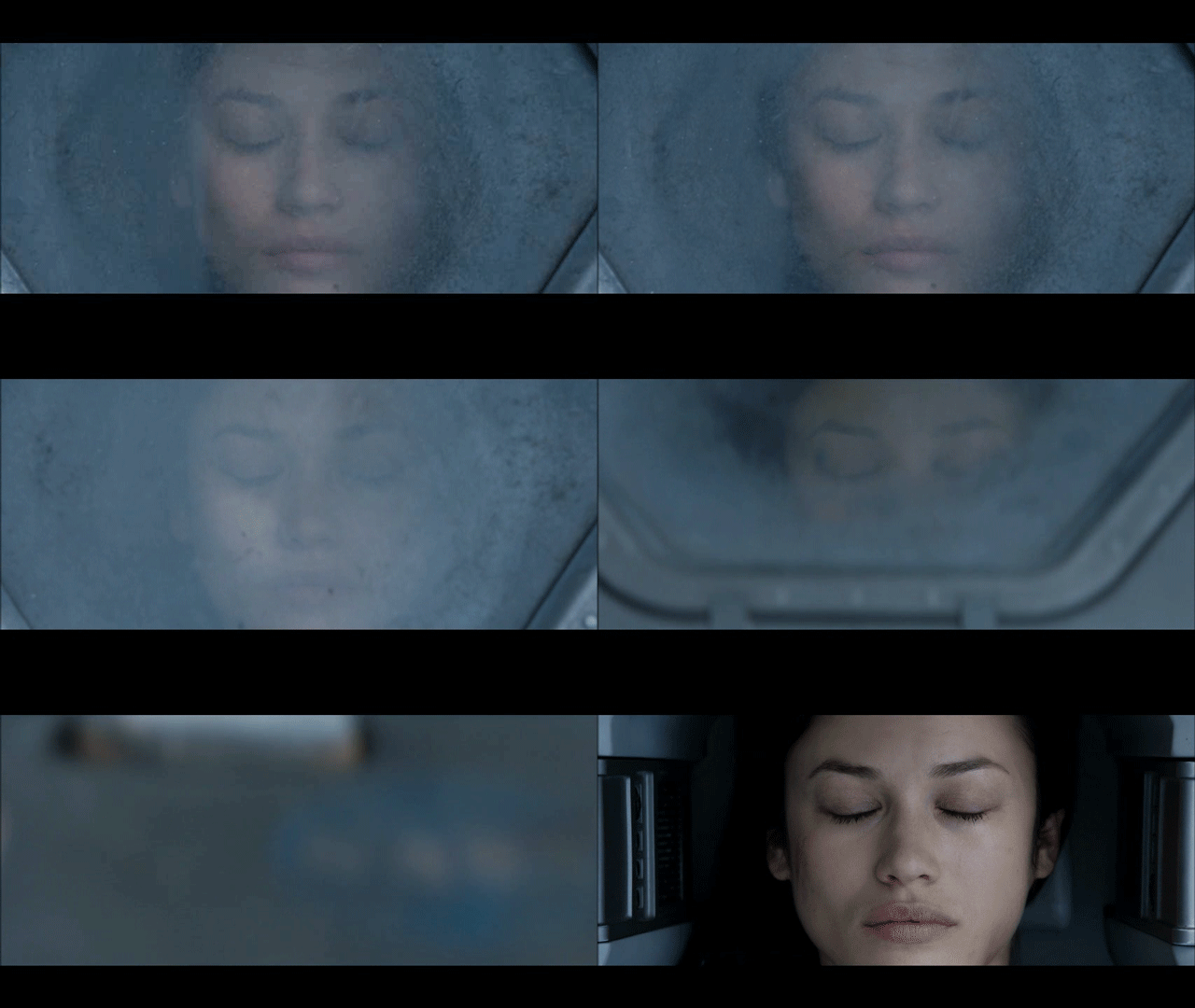
When the countdown finishes, the pod slides open. Julia slowly begins to recover consciousness, open her eyes and sits to take a look around the outside.

Rome wasn’t built in 99 hours.

The countdown timer shows the amount of hours, minutes and seconds until the sleeper wakes, counting backwards. We just get to see the timer —and hear it beeping— only when the sleep time is ending, so it’s likely a feature to notify any close witness that the pod is about to open.

But what if the sleeper’s biometrics start to get bad? Well, the timer does leave enough room on the screen to leave the bulk of the biometrics data. The device also has a warning for when the sleeper is in CRITICAL condition, but we don’t get to see any in-between modes. It could be helpful if the timer offered some sound cue when the sleeper has some minor issue as well, even if it isn’t as bad. Even something as simple as changing the tone of the beep could do the trick.

Did you notice that the timer has two digits to display hours? That means it can display 99 hours of remaining time. That’s a long time. I’m guessing that the display doesn’t show the countdown with that much time in advance. But in that case, when does it show the timer? If the timer looks to give a hint when a sleeper is about to wake up, you don’t really need to know the amount of hours left. A few minutes’ advance notice is enough.

Kind-of setting the timer.

Although the crew of the Odyssey could probably handle the delta sleep from the onboard computer, the display also offers some functions to control that time. It has three buttons that control the timer:

  • a START button
  • a RESET button
  • a CLEAR button

The timer has two small half-circles both at the top and bottom of the clock. There is a play button. The timer needs to have a way to enter a given duration, and from the mapping of those symbols I’m guessing they could work as adding and subtracting buttons —you know, press the top button to add an hour, press the bottom button to reduce an hour. But at the same time the buttons don’t have any labels to convey that—they lack either a plus symbol on the top or a minus symbol on the bottom. For what it’s worth, the only label they offer is the time magnitude of any pair of digits—hours, minutes and seconds—on the circles at the bottom. So yeah, I’m close to calling these fuidgets.

The text buttons need some consideration as well. The first two are pretty straightforward if we envision the scenario where the clock timer can be set to any given time. In that case START will start the clock and RESET will put it back to zero, as with any common timer. The odd bit is that there is still a START button while the clock is ticking. In many common timers that same button has two modes that switch according to the state of the timer: starting it when it’s paused and pausing it when it it’s playing. But the missing pause mode or button could have a purpose, perhaps waking the sleeper requires a gradual biological process that can’t be stop once it has began.

image02

There are other problems with the third one, the CLEAR button. Although the label is somewhat misleading, the button probably acts as a way to close the pop-up of the countdown, removing it from the screen. But the real issue is what happens after that. If the user press CLEAR and the pop-up closes, there is no way of knowing if the timer keeps running in the background or if it resets back to zero. This is a major problem.

Anyhow, even if the timer did run in the background it doesn’t have much of a point in this case. I mean, there was no one around to check on Julia while she was in sleep.

A little ramble on Industrial Design

Another interesting aspect of the design of the pods is the way they open. Instead of opening or sliding the cover to one side, as more common doors and hatches, the cover of the pods is divided in the middle like a double-leaf bascule drawbridge. These covers on the pod have a hinge both at the top and bottom, so they turn outside and up of the pod when opening.

Jack releases Julia from the sleep pod.

Although it may seem like an overly complicated design, it really shows its advantages when you set it in context. On the Odyssey the sleep pods are placed side by side, alongside the walls of a tube like compartment. There, the area around the center has hatches that lead to other compartments.

image00

Within a space of those characteristics, a cover that opens or slides to the side would bring some problems. As the cover slides, when opening a pod you would be blocking the one next to it. To improve that, you could have a cover that opens up from the top or the bottom. With that you could have more than one pod closing and opening at the same time, but it also comes with drawbacks. Given the length of the pods those doors will probably cover much of the transit area around the compartments of the ship, becoming an obstacle for the movement of the crew.

This is a solution for both problems. The divided doors give plenty of space for the crew to pass through, and as the doors open up they also give room to opening or closing the pods next to each other at the same time.

Communications with Sally

image01

While Vika and Jack are conducting their missions on the ground, Sally is their main point of contact in orbital TET command. Vika and Sally communicate through a video feed located in the top left corner of the TETVision screen. There is no camera visible in the film, but it is made obvious that Sally can see Vika and at one point Jack as well.

image00

The controls for the communications feed are located in the bottom left corner of the TETVision screen. There are only two controls, one for command and one for Jack. The interaction is pretty standard—tap to enable, tap again to disable. It can be assumed that conferencing is possible, although certain scenes in the film indicate that this has never taken place.

image02

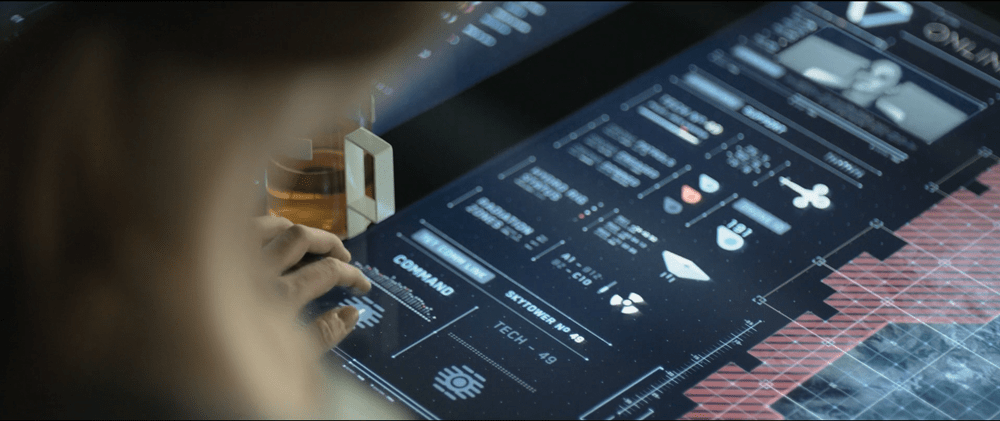
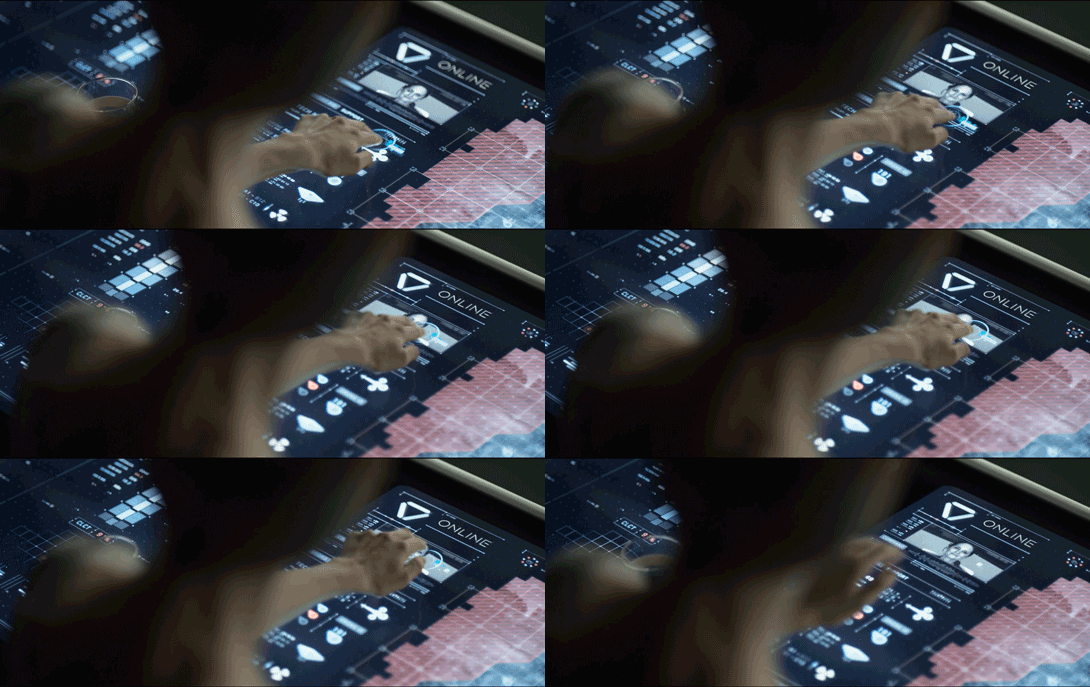
Upon first connecting with Sally each morning, Vika uploads data to the TET by using a two-finger gesture to drag the information up to Sally’s video display. There is no footage showing where she taps to begin the gesture, but it seems to originate at the hydro-rig symbol since Vika is discussing hydro-rig support as she interacts with the screen.

Same interaction for different functions

When Vika sends the hydro-rig coordinates to Jack in the Bubbleship, she is using the exact same interaction as she uses here to send the hydro-rig status data to the TET. When she uses the two-finger gesture to drag from the hydro-rig symbol to the Bubbleship, GPS coordinates are being sent. When she uses the same gesture to drag from the hydro-rig symbol to Sally’s video feed, it sends data on the hydro-rig status. How does the system know what data to send when?

It’s possible that this is another instance of agentive tech in which the system determines what data to send based on where the gesture ends. However, as mentioned in another post, it would be better to use consistent interactions for similar tasks by using the two-finger gesture to upload data to the TET and to use the one-finger gesture for sending coordinates directly with the map interface.

Or better yet, auto-upload the data to the TET upon connection and make it fully agentive. Not great for our heroes’ sense of control, but from the TET’s perspective…

TET communications status

image03

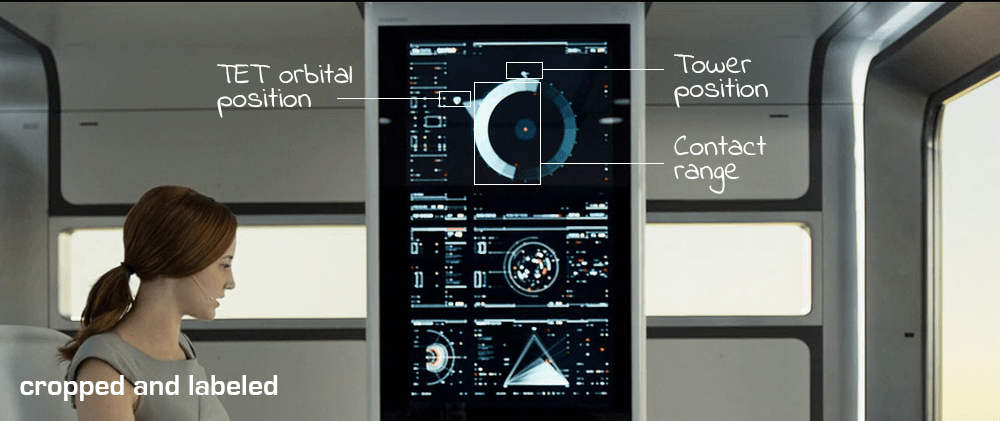
Since Vika relies heavily on the TET’s surveillance and communications capabilities, it is important for her to know when the TET is going to be within contact range. The TET system status feed, which is the screen at the top of the upright section of the desk, monitors the TET’s orbital position in relation to the tower.

As labeled in the image above, the tower position is indicated by an icon located at the top of the circle (the earth) and remains stationary as the TET icon rotates, representing the real-time orbital position. The lighter blue gradient area of the monitor indicates the TET’s range of communications. The darker area indicates when the TET is outside of contact range.

No thinking required

This is one of the simplest interfaces in the film. The visualization of data is very easy to understand and allows for a quick glimpse of all of the information Vika needs without having to think about it. The gradients represent the strength of the signal – the more solid light blue seen directly under the TET symbol indicates a full-strength signal while the darker gradients represent a weaker signal.

One of the main tenets of user experience design is to create technology that would allow anyone, regardless of their technical background, to quickly and easily use the interface with as little mental processing power as possible. Make the design obvious and self-explanatory with no training required.

Don’t make the user have to think about it.

Drone Status Feed

Oblivion-Desktop-Overview-002
Oblivion-Desktop-DroneMonitor-001


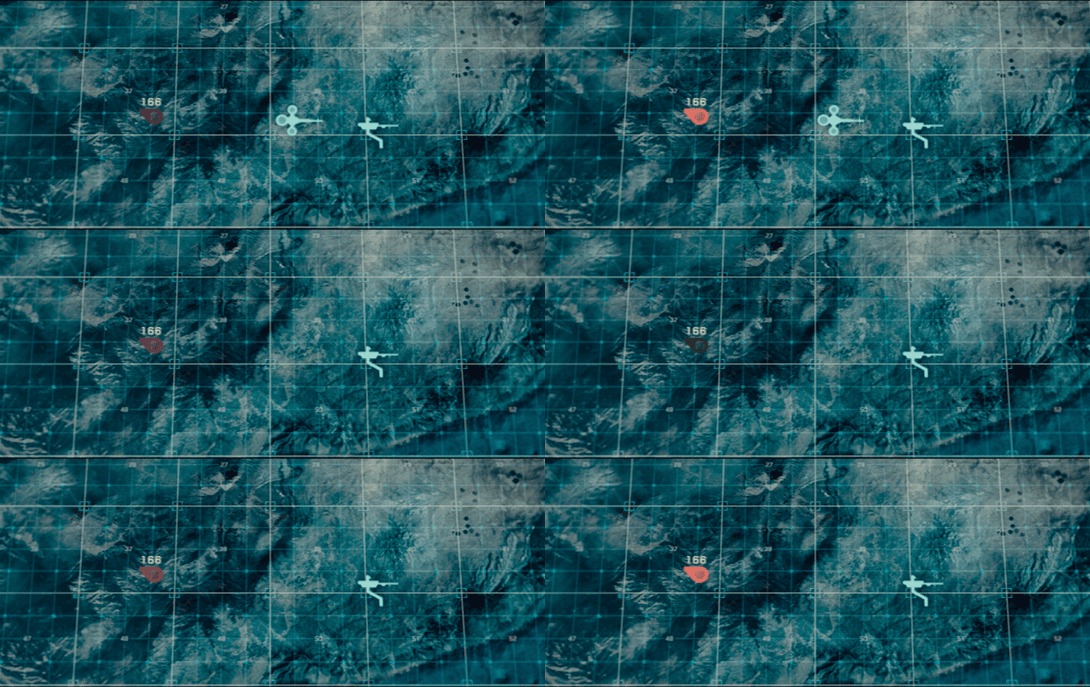
As Vika is looking at the radar and verifying visuals on the dispatched drones with Jack, the symbols for drones 166 and 172 begin flashing red. An alert begins sounding, indicating that the two drones are down.

Oblivion-Desktop-DroneCoordinates

Vika wants to send Jack to drone 166 first. To do this she sends Jack the drone coordinates by pressing and holding the drone symbol for 166 at which time data coordinates are displayed. She then drags the data coordinates with one finger to the Bubbleship symbol and releases. The coordinates immediately display on Jack’s HUD as a target area showing the direction he needs to go.

Simple interactions

Overall, the sequence of interactions for this type of situation is pretty simple and well thought out. Sending coordinates is as simple as:

  1. Tap and hold on the symbol of the target (in this case the drone) using one finger
  2. A summary of coordinates data is displayed around the touchpoint (drone symbol)
  3. Drag data over to the symbol of the receiver (in this case the Bubbleship)

Then on Jack’s side, the position of the coordinates target on his HUD adjusts as he flies toward the drone. Can’t really get much simpler than that.

However…

When Vika initially powers up the desktop, the drone status feed already shows drones 166 and 172 down. This is fine, except the alert sound and blinking icons on the TETVision don’t occur until Jack has already reached the hydro-rigs. This is quite a significant time lag between the drone status feed and the TETVision feed. It would be understandable if there was a slight delay in the alert sound upon startup. An immediate alert sound would likely mean there is something wrong with the TETVision system itself. That said, the TETVision drone icons should at the very least already be blinking red on load.

Monitoring drone 166

Oblivion-Desktop-DroneMonitor-005

As Jack is repairing drone 166, Vika watches the drone status feed on her desktop. The drone status feed is a dedicated screen to the right of the TETVision feed.

Oblivion-Desktop-DroneMonitor-000

It is divided into two main sections, the drone diagnostic matrix to the left and the drone deployment table to the right.

The dispatched drone table lists all drones currently working the security perimeter and lists an overview of information including drone ID, a diagram and operational status. The drone diagnostic matrix shows data such as fuel status and drone positioning along the perimeter as well as a larger detailed diagram of the selected drone.

Oblivion-Desktop-DroneMonitor

By looking at the live diagnostics diagram, Vika is able to immediately tell Jack that the central core is off alignment. As soon as Jack finishes repairing the central core, the diagram updates that the core is back in alignment and an alert sound pings.

How does the feed know which drone to focus on?

Since there is no direct interaction with this monitor shown in the film, it is assumed to be an informational display. So, how does the feed know which drone to focus on for diagnostics?

One possibility could be that Jack transmits data from the ground through his mobile drone programmer handset, which is covered in another post. However, a great opportunity for an example of agentive tech would be that when Vika sends the drone coordinates to the Bubbleship, the drone status feed automatically focuses on that one for diagnostics.

Clear messaging in real-time…almost

Overall, the messaging for drone status feed is clear and simple. As seen in the drone deployment table, the dataset for operational drones includes the drone ID number and a rotating view of the drone schematic. If the drone is down, the ID number fades and the drone schematic is replaced with a flashing red message stating that the drone is offline. Yet, when the drone is repaired, the display immediately updates to show that everything is operational again.

This is one of the basic fundamentals of good user interface design. Don’t let the UI get in the way and distract the user.

Keep it simple.